Add Diagonal Client-Proof Watermark Locally
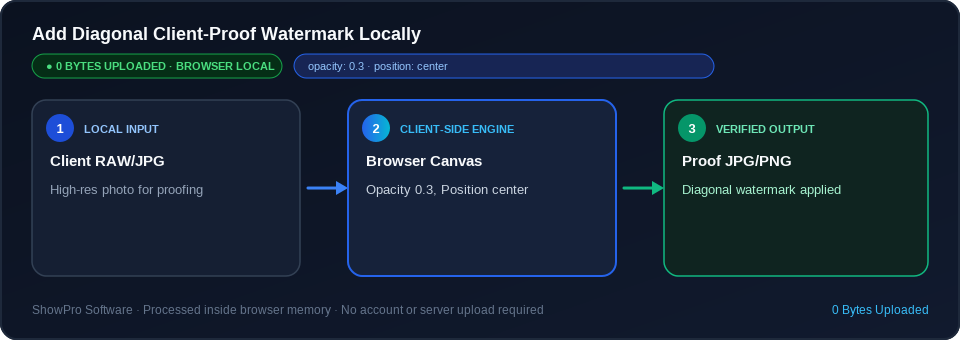
Protect sensitive client photography proofs without uploading a single pixel. This ShowPro utility applies a diagonal, client-proof watermark directly in your browser, ensuring privacy. Pre-configured with 30% opacity and centered positioning, it offers immediate visual protection against unauthorized use, letting clients review images securely before final delivery. No accounts, no uploads, just local processing.
Workflow Checklist
- Confirm diagonal watermark text obscures critical subject details without fully hiding the image content.
- Verify the output file size is suitable for client email attachments or portal uploads (e.g., under 10MB for most services).
- Check that the 30% opacity provides clear visual proofing, preventing screenshots from being usable for print.
- Ensure the watermarked image is saved to a secure, organized folder for easy client sharing and record-keeping.
Parent Tool & Hub
Step-by-Step Guide: Add Diagonal Client-Proof Watermark Locally
Follow these exact steps to complete this workflow locally in your browser without uploading files.
- 1
Select Proof Image Locally
Drag and drop your client photo (JPG, PNG, HEIC from iPhone Photos app) directly onto the designated area, or use the 'Browse File' button to select from Mac Finder or Windows Explorer.
Tip: For HEIC files, ensure your browser supports `heic2any.js` for seamless local conversion before watermarking. - 2
Apply Diagonal Watermark
Once your image loads, the pre-configured diagonal watermark (30% opacity, centered) is automatically applied. No further adjustments are needed for this specific client-proof preset.
Tip: The processing occurs instantly via HTML5 Canvas, so observe the preview for immediate feedback. - 3
Review Watermarked Output
Examine the preview image to confirm the diagonal watermark effectively covers the primary subject, making it unsuitable for unauthorized use while still allowing client review.
Tip: Check for sufficient coverage, particularly around faces or key product details, as the 30% opacity is designed for visibility. - 4
Download Protected Proof
Click the 'Download' button. Your watermarked image will save directly to your browser's default download folder (e.g., 'Downloads' in Windows Explorer or Mac Finder).
Tip: Rename the downloaded file immediately for client delivery, perhaps appending '_proof' to the filename.
Technical Specifications & Preset Reference
| Parameter | Recommended Setting | Why It Matters |
|---|---|---|
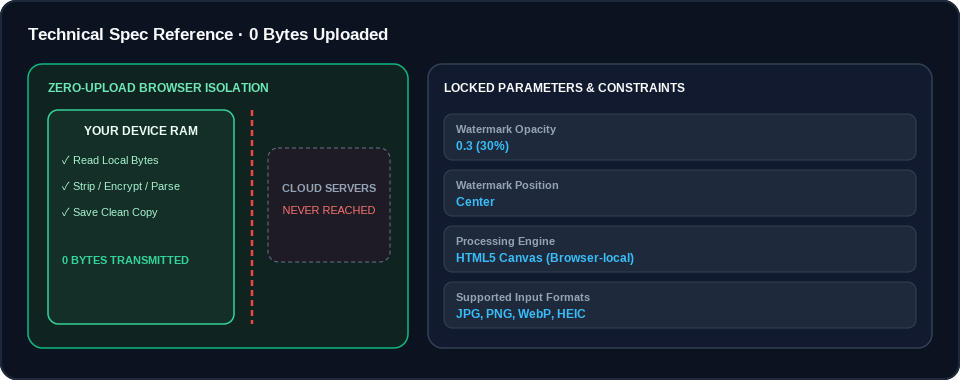
| Watermark Opacity | 0.3 (30%) | This opacity balances visibility for client review with sufficient obscuration to deter unauthorized use, preventing easy digital removal. |
| Watermark Position | Center | Centering the diagonal watermark maximizes coverage over the image's focal point, making it harder to crop out without significant loss. |
| Processing Engine | HTML5 Canvas (Browser-local) | All transformations happen within your browser, ensuring zero bytes of your sensitive client images are ever uploaded to any server. |
| Supported Input Formats | JPG, PNG, WebP, HEIC | Broad support covers most common camera and web image formats, including HEIC from iOS, without requiring prior conversion. |
Common Issues & Troubleshooting Fixes
Watermark text appears too small or too large on the image.
This tool's diagonal text scales dynamically with image resolution. For consistent appearance, use images of similar dimensions, or consider resizing before watermarking.
Accidentally closed the browser tab before downloading the watermarked image.
Since processing is local and temporary, simply re-upload your original image and the watermark will be re-applied instantly for download.
Client reports difficulty discerning image details due to watermark opacity.
The 0.3 opacity is a standard proofing balance. If a client needs clearer views, consider providing smaller, lower-resolution watermarked versions or using the main Image Watermark tool for custom opacity.
Why Run This Workflow Locally in ShowPro?
Unlike remote watermarking services that demand uploading sensitive client photographs, this local tool processes everything in your browser. This eliminates privacy risks associated with data transfer and server storage, ensuring your client proofs remain confidential. For photographers handling large volumes or highly sensitive projects, this '0 bytes uploaded' approach provides unmatched security and speed for diagonal proof watermarking.
Frequently Asked Questions
Can I change the watermark text or its specific font/color?
No, this specific tool is pre-configured for 'Client Proof' diagonal text to standardize client review. For custom text, font, or color, please use our main Image Watermark tool.
Is my original photo modified or uploaded during this process?
Absolutely not. Your original photo remains untouched on your device, and zero bytes are uploaded to any server. All watermarking occurs locally within your web browser using HTML5 Canvas.
Why is the opacity fixed at 30% and position centered?
These settings are specifically chosen for optimal client-proofing: 30% opacity allows clear review while deterring misuse, and centering ensures the watermark covers the most important parts of the image.
Does this tool strip EXIF data from my photographs?
No, this tool primarily focuses on applying the visual watermark. EXIF metadata, such as camera model or date, is generally preserved in the output file. Use a dedicated EXIF stripper if removal is required.