Add Clean White Instagram Border Frame to Photo
Quickly add a clean white Instagram-style border to any photo directly in your browser. This tool is pre-configured with a crisp white border (hex #ffffff) and a uniform thickness of 24 pixels on all sides, perfect for social media sharing without uploading your personal images anywhere.
Workflow Checklist
- Verify the output image resolution is exactly (original_width + 48) x (original_height + 48) pixels.
- Confirm the border color is pure white (#FFFFFF) using a color picker tool.
- Check the file size increase is minimal, typically less than 5% for a 24px border on a standard photo.
- Ensure the output image is saved as a PNG for optimal quality before sharing.
Parent Tool & Hub
Step-by-Step Guide: Add Clean White Instagram Border Frame to Photo
Follow these exact steps to complete this workflow locally in your browser without uploading files.
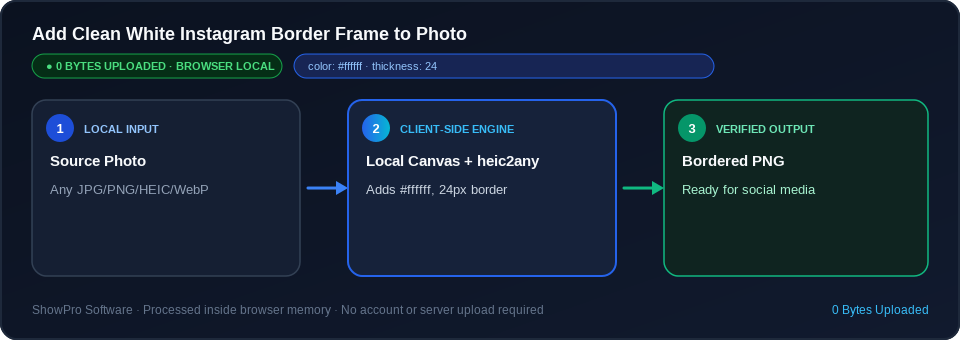
- 1
Select Your Image File
Click 'Choose File' and navigate to your photo. For iOS users, access your camera roll via the iCloud.com Photos section or transfer directly via AirDrop to a Mac.
Tip: HEIC files from iPhones are automatically converted to PNG locally. - 2
Verify Border Settings (Pre-configured)
Confirm the border 'Color' is set to #ffffff (white) and 'Thickness' is 24. These values are pre-loaded for the Instagram-style frame, requiring no manual adjustment for this specific look.
Tip: The thickness applies uniformly to all four sides of the image. - 3
Process Photo Locally
Initiate the transformation. Your browser's HTML5 Canvas API will add the 24px white border to your image, ensuring no data leaves your device during processing.
Tip: Modern browsers (Chrome, Firefox, Safari) execute this rapidly on device. - 4
Download Bordered Image
Once processed, a 'Download Image' button will appear. Click it to save your new photo, typically as a PNG or JPG, to your browser's default download location.
Tip: Check your 'Downloads' folder (e.g., C:\Users\YourName\Downloads on Windows). - 5
Share to Social Media
Upload your new bordered photo directly to Instagram, Facebook, or other platforms. The 24px white frame provides a consistent, clean aesthetic for your feed.
Tip: Instagram often prefers square images; consider pre-cropping if needed.
Technical Specifications & Preset Reference
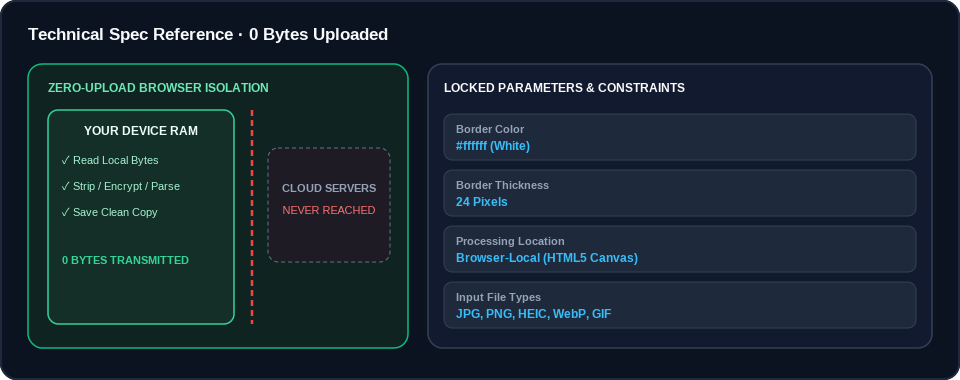
| Parameter | Recommended Setting | Why It Matters |
|---|---|---|
| Border Color | #ffffff (White) | Ensures a crisp, clean aesthetic, mimicking popular social media frame styles for visual consistency. |
| Border Thickness | 24 Pixels | Provides a balanced, noticeable frame without overwhelming the original image, ideal for a 'Polaroid' effect. |
| Processing Location | Browser-Local (HTML5 Canvas) | Guarantees 0 bytes uploaded, protecting privacy and enabling instant transformations without server roundtrips. |
| Input File Types | JPG, PNG, HEIC, WebP, GIF | Broad support ensures nearly all common image formats from cameras and phones can be processed directly. |
| Output File Type | PNG (Default) | PNG preserves image quality and handles transparency if the original had it, though this border is opaque. |
Common Issues & Troubleshooting Fixes
Instagram/Discord upload compression artifacts on border.
Ensure your original image quality is high. After adding the border, download as PNG for maximum fidelity before uploading to platforms.
Border appears too thin or too thick on specific screen sizes.
The 24px border is absolute. If a different visual proportion is needed, return to the parent 'Add Border' tool and adjust thickness manually.
Image with existing border gets a second, unintended border.
Always use original source images without pre-existing borders. If necessary, crop out the old border first using a tool like Mac Preview or Windows Photos.
HEIC file fails to load or process correctly.
Verify your browser supports WebAssembly (most modern browsers do). The 'heic2any.js' library handles the conversion locally before canvas processing.
Why Run This Workflow Locally in ShowPro?
Unlike remote image editors that require uploading your photos to their servers, this tool processes everything locally within your browser using HTML5 Canvas. This means your personal and client graphics never leave your device, ensuring complete privacy and significantly faster processing for adding a simple white border, especially for larger files.
Frequently Asked Questions
Can I change the border color or thickness from these pre-set values?
This specific tool is pre-configured for a white 24px border. To customize color or thickness, please navigate to the parent 'Add Border to Image' tool where you can adjust all parameters manually.
Why does the tool convert my HEIC photo to PNG or JPG?
HEIC is not directly supported by all browser canvas APIs. The tool uses a local 'heic2any' library to convert HEIC images to a browser-compatible format (like PNG) before applying the border, all within your device.
Will adding this border reduce my image quality?
No, the process uses the HTML5 Canvas API to add pixels without resampling or recompressing your original image data. Quality loss is negligible, especially when saving the output as PNG.
Is there a maximum file size or resolution limit for photos?
While there are no hard coded limits, performance is constrained by your device's RAM and CPU. For very large images (e.g., 50MP+), processing might take longer, but it will still happen locally.
How does this tool ensure my photo privacy?
All image processing occurs entirely within your web browser. Your photo data is never uploaded to ShowPro servers or any third-party service, guaranteeing 0 bytes uploaded and complete privacy.