Bulk Resize Product Photos to 1000x1000px
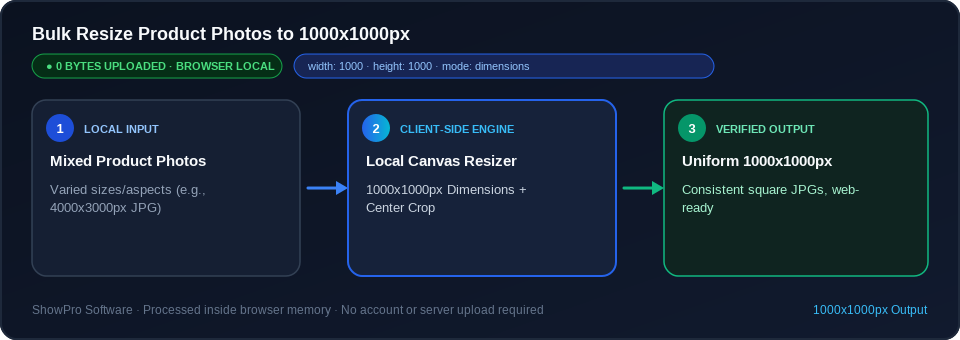
Effortlessly standardize your product imagery with this specialized tool, pre-configured to resize all your photos to a precise 1000x1000 pixel square. Avoid manual cropping and ensure consistent dimensions for e-commerce platforms like Shopify or Etsy, all processed securely in your browser without any uploads.
Workflow Checklist
- Verify all output images are exactly 1000px by 1000px.
- Check for acceptable JPG file sizes (typically under 300KB for product photos).
- Ensure critical product features are not cropped or distorted.
- Confirm consistent white/transparent backgrounds across all resized images.
Parent Tool & Hub
Step-by-Step Guide: Bulk Resize Product Photos to 1000x1000px
Follow these exact steps to complete this workflow locally in your browser without uploading files.
- 1
Select Product Image Files
Click 'Choose Files' and select all product photos from your desktop folder (e.g., 'C:\Users\YourName\Desktop\Product_Shots') or directly from your Mac Finder window.
Tip: Drag-and-drop an entire folder for faster batch selection. - 2
Verify Preset Configuration
Confirm the 'Resize Mode' is set to 'Dimensions' and both 'Width' and 'Height' are locked at '1000px'. This ensures a perfect square output.
Tip: If images aren't square, they will be center-cropped to fit 1000x1000. - 3
Set Output Format & Quality
Choose 'JPG' for web optimization. Adjust the 'Quality' slider (e.g., 85%) for a balance between file size and visual fidelity, ideal for product listings.
Tip: Lower quality settings reduce file size but can introduce compression artifacts. - 4
Initiate Local Resizing
Click 'Process Images'. The browser's HTML5 Canvas API will locally resize and re-encode each image to 1000x1000px without server interaction.
Tip: Processing happens client-side; no data leaves your device. - 5
Download Resized Images
Once complete, click 'Download All' to save a ZIP archive of your standardized 1000x1000px product photos to your default downloads folder.
Tip: Rename files before upload for better SEO (e.g., 'product-sku-front.jpg').
Technical Specifications & Preset Reference
| Parameter | Recommended Setting | Why It Matters |
|---|---|---|
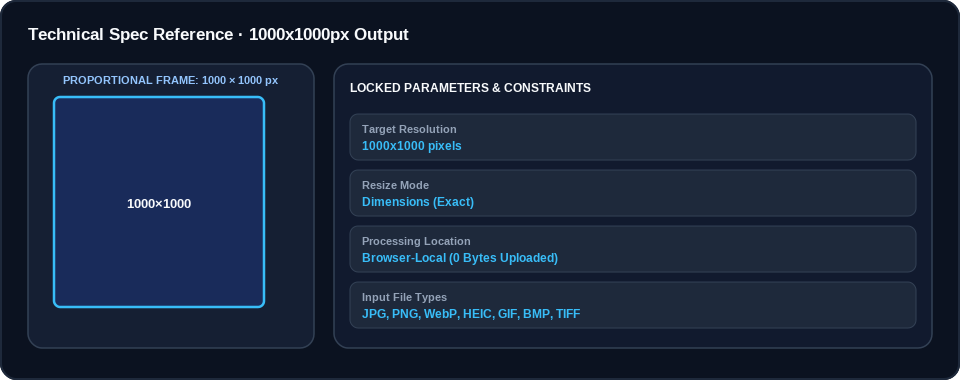
| Target Resolution | 1000x1000 pixels | Ensures uniform dimensions for product grids, preventing layout shifts and maintaining visual consistency across e-commerce platforms. |
| Resize Mode | Dimensions (Exact) | Guarantees every output image will precisely match the 1000x1000px constraint, automatically cropping non-square inputs to fit. |
| Processing Location | Browser-Local (0 Bytes Uploaded) | Your sensitive product photos remain on your device, ensuring maximum privacy and eliminating upload/download times for large batches. |
| Input File Types | JPG, PNG, WebP, HEIC, GIF, BMP, TIFF | Broad compatibility means you can process photos directly from any camera or screenshot without prior conversion, streamlining your workflow. |
| Output Format Recommendation | JPG (Quality 80-90) | Optimizes file size for fast page loading on e-commerce sites while retaining sufficient detail for product display at 1000x1000px. |
Common Issues & Troubleshooting Fixes
Shopify/Etsy 'Image too small' error for specific products.
Ensure original images are at least 1000x1000px before processing. Upscaling smaller images will result in pixelation and rejection; use higher resolution sources.
Important product details cropped out after resizing.
Review the 'Preview' pane after processing. If crucial elements are lost, manually crop originals to a 1:1 aspect ratio *before* using this tool, or adjust framing in your shoot.
Inconsistent background colors or lighting after upload.
This tool only resizes. Use an image editor (e.g., Photoshop, GIMP) to standardize backgrounds and lighting *before* resizing to 1000x1000px for a professional look.
Slow processing for very large input files (e.g., 20MB+ HEIC).
While local processing is fast, extremely large files consume more browser memory. For optimal performance, consider reducing original image sizes slightly (e.g., to ~5MB) before bulk resizing.
Why Run This Workflow Locally in ShowPro?
Unlike remote image resize services that require uploading your entire product catalog, this tool processes everything locally in your browser. For bulk resizing dozens of sensitive product photos to 1000x1000px, this means instant privacy, no waiting for uploads/downloads, and zero server strain. Your valuable e-commerce assets never leave your device.
Frequently Asked Questions
Will my product photos be distorted if they aren't square initially?
No, this tool automatically center-crops non-square images to fit the 1000x1000px dimensions. The original aspect ratio is maintained as much as possible within the square frame.
Can I resize photos to 1000x1000px for a specific platform like Shopify?
Yes, 1000x1000px is a widely accepted and often recommended dimension for product listings on platforms like Shopify, Etsy, and WooCommerce, ensuring optimal display and zoom functionality.
What happens if my original photo is smaller than 1000x1000px?
If your input image is smaller, it will be upscaled to 1000x1000px. However, this may result in a loss of quality or pixelation. Always try to start with source images at or above the target resolution.
Is there a limit to how many product photos I can resize at once?
The primary limit is your browser's memory and CPU. For typical product photos (e.g., 2-5MB), you can comfortably process hundreds at once. For extremely large files, process in smaller batches.
Does this tool compress my images, or just resize them?
This tool both resizes to 1000x1000px and re-encodes the image. For JPG output, you can set the 'Quality' to control the compression level, effectively optimizing file size for web display.