Make Circular Profile Avatar PNG Offline
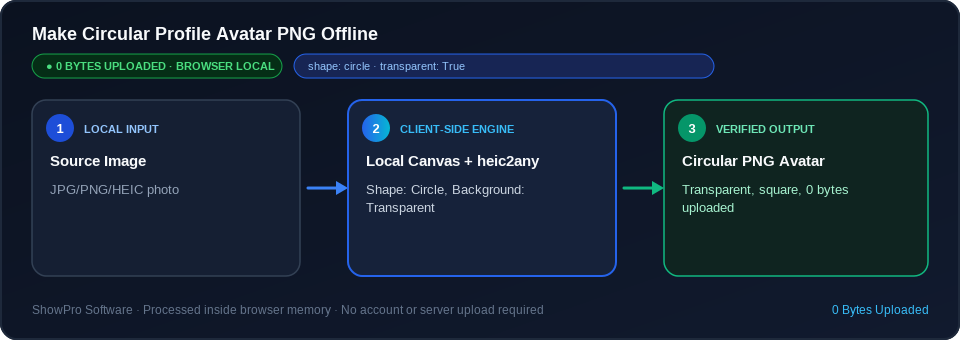
Quickly transform any image into a perfectly circular, transparent background PNG avatar right in your browser. This tool is pre-configured with `shape: circle` and `transparent: true` to streamline making profile pictures for platforms like GitHub, Slack, Discord, or any portal requiring a crisp, circular avatar without uploading your personal files.
Workflow Checklist
- Verify final PNG is exactly square (e.g., 256x256px, 180x180px).
- Confirm checkerboard background in preview for true transparency.
- Check file size is under platform limits (e.g., <5MB for Discord, <1MB for GitHub).
- Ensure primary subject is centered within the circle with sufficient padding.
Parent Tool & Hub
Step-by-Step Guide: Make Circular Profile Avatar PNG Offline
Follow these exact steps to complete this workflow locally in your browser without uploading files.
- 1
Select Your Source Image
Click 'Choose File' to select your desired profile picture. For best results, use a high-resolution portrait from your device, like an iPhone HEIC from your camera roll or a JPEG from your desktop.
Tip: Avoid images with busy backgrounds; a simple, centered subject works best for circular crops. - 2
Adjust Crop and Zoom
Drag the circular overlay to position your face or subject perfectly within the crop area. Use the zoom slider to ensure your image fills the circle without showing edges.
Tip: Keep a consistent margin around your face for a balanced look on smaller avatar displays. - 3
Verify Transparency and Shape
Confirm the preview shows a perfectly circular image with a checkerboard background, indicating transparency. This preset automatically applies the circular shape and transparent background.
Tip: The checkerboard pattern confirms the alpha channel is active for seamless integration on dark/light themes. - 4
Set Output Dimensions
Before exporting, review the output dimensions. Common avatar sizes include 256x256px for Discord or 180x180px for GitHub. Adjust as needed for specific platform requirements.
Tip: Always export at a slightly higher resolution (e.g., 512x512px) if a platform resizes, to maintain sharpness. - 5
Download Your Circular PNG
Click the 'Download' button to save your new circular PNG avatar directly to your device. No data is uploaded; all processing occurs locally using HTML5 Canvas.
Tip: Rename the downloaded file immediately (e.g., `my-github-avatar.png`) for easy identification.
Technical Specifications & Preset Reference
| Parameter | Recommended Setting | Why It Matters |
|---|---|---|
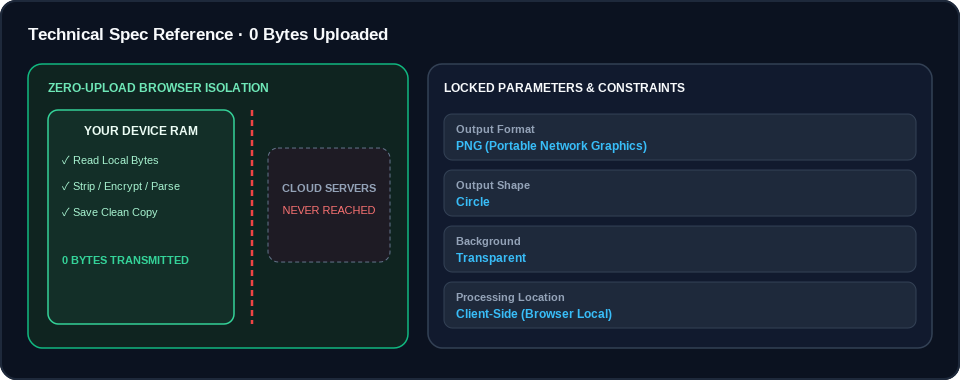
| Output Format | PNG (Portable Network Graphics) | PNG supports alpha transparency, essential for creating avatars that blend seamlessly into any website or app background. |
| Output Shape | Circle | This preset specifically crops to a perfect circle, matching standard profile picture requirements for most social and professional platforms. |
| Background | Transparent | A transparent background ensures your avatar integrates cleanly without a distracting white or colored square border on platforms like Slack or Discord. |
| Processing Location | Client-Side (Browser Local) | Your image files never leave your device, ensuring maximum privacy and security for personal or client-sensitive profile photos. |
| Input File Types | JPG, PNG, HEIC, WebP, GIF | Broad input compatibility allows you to use nearly any common image file from your device without prior conversion steps. |
Common Issues & Troubleshooting Fixes
Avatar rejected due to non-square dimensions (e.g., 200x250px)
Ensure the output dimensions are perfectly square (e.g., 256x256px) before downloading, as many platforms enforce 1:1 aspect ratios.
Black halo around image edges on dark mode interfaces
This indicates improper transparency. Re-export, ensuring the preview clearly shows the checkerboard pattern, confirming true alpha transparency.
Image appears blurry or pixelated when uploaded
Export at a resolution equal to or slightly higher than the platform's recommended size (e.g., 512x512px for a 256x256px display) to prevent upscaling blur.
Subject cropped too tightly or off-center after upload
Utilize the in-browser zoom and drag controls to precisely center and frame your subject with adequate padding before downloading the PNG.
Why Run This Workflow Locally in ShowPro?
Unlike remote online crop tools that require uploading your personal images to a server, this ShowPro tool processes everything locally in your browser. For sensitive profile pictures, this means zero bytes uploaded and no privacy concerns. Your HEIC photo from iCloud.com or client headshot from Windows Explorer stays entirely on your device, transformed instantly.
Frequently Asked Questions
Why does my avatar still have a white background after using this tool?
The white background typically means the platform itself is adding one. Ensure the preview showed a checkerboard pattern. If so, your PNG is transparent; the issue lies with the platform's rendering or theme.
Can I use HEIC files directly from my iPhone?
Yes, this tool supports HEIC files. You can drag and drop them from your Mac Finder, or download from iCloud.com, then upload them directly. Our local `heic2any` engine handles the conversion.
What's the best resolution for a GitHub profile picture?
GitHub displays avatars at various sizes, but typically 180x180px. Exporting at 256x256px or 512x512px provides optimal clarity on high-DPI screens without excessive file size.
Is my image data truly safe and not uploaded?
Absolutely. All image processing, including cropping, resizing, and format conversion, happens entirely within your web browser using HTML5 Canvas. Your files never leave your device, ensuring complete privacy.
How do I ensure perfect centering of my face?
After selecting your image, use the interactive circular overlay. Drag it to precisely position your face. The zoom slider also helps fine-tune the framing to ensure optimal centering within the circle.