Optimize Animated GIF Under 1MB (128 Colors)
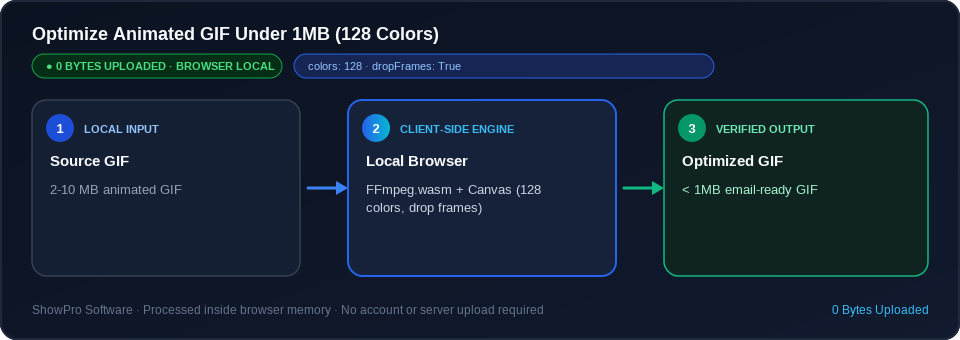
This tool optimizes animated GIFs specifically for email attachments, ensuring they remain under 1MB with a pre-configured 128-color palette. All processing occurs directly in your browser, keeping your personal or client graphics private. The preset also intelligently drops redundant frames to further reduce file size without quality compromise.
Workflow Checklist
- Verify final GIF file size is less than 950KB for buffer.
- Confirm animation loops correctly in a local viewer (e.g., browser).
- Check color fidelity for brand assets against original source file.
- Test email attachment in a draft message to self before sending.
Parent Tool & Hub
Step-by-Step Guide: Optimize Animated GIF Under 1MB (128 Colors)
Follow these exact steps to complete this workflow locally in your browser without uploading files.
- 1
Select GIF File Locally
Click 'Choose File' and navigate to your animated GIF. Select it from your desktop (e.g., Windows Explorer, Mac Finder) or mobile device's local storage. No upload occurs.
Tip: For iPhone, use the Files app to locate GIFs saved from Photos or other apps. - 2
Verify Preset Configuration
Confirm 'Colors: 128' and 'Drop Frames: Enabled' are active. These settings are pre-loaded to meet the <1MB email target, ensuring optimal compression.
Tip: Avoid manual adjustments unless you understand the impact on the 1MB target. - 3
Initiate Local Optimization
Press the 'Optimize GIF' button. The browser's HTML5 Canvas and FFmpeg.wasm will process the GIF, reducing its size directly on your device.
Tip: Processing time varies based on original GIF size and your device's CPU. - 4
Review Optimized GIF
After processing, preview the optimized GIF in the output section. Confirm the animation plays correctly and the visual quality is acceptable for email.
Tip: Check the reported file size to ensure it's comfortably under 1MB for most email clients. - 5
Download Resulting GIF
Click 'Download GIF' to save the compressed file to your default downloads folder. This optimized GIF is now ready for email attachments.
Tip: Rename the downloaded file immediately for better organization, e.g., 'my-animation-email.gif'.
Technical Specifications & Preset Reference
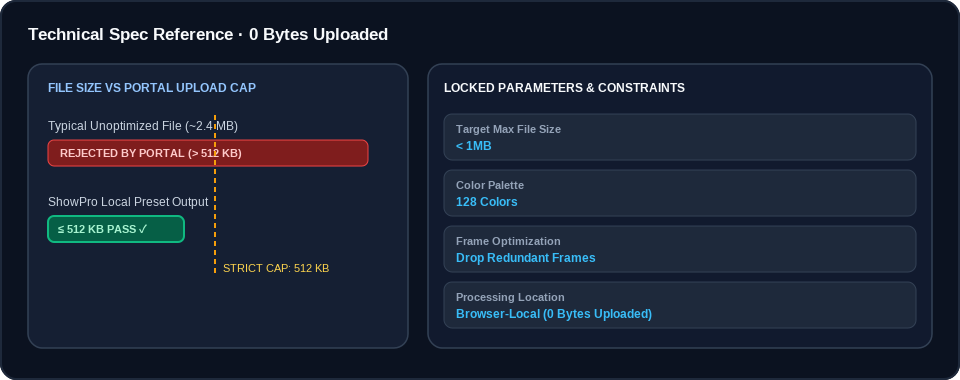
| Parameter | Recommended Setting | Why It Matters |
|---|---|---|
| Target Max File Size | < 1MB | Ensures compatibility with most email providers (e.g., Gmail, Outlook) and avoids attachment rejection or truncation. |
| Color Palette | 128 Colors | A 128-color adaptive palette drastically reduces file size while maintaining visual fidelity for most animated graphics. |
| Frame Optimization | Drop Redundant Frames | Intelligently removes frames that don't change pixel data, significantly cutting down on the total data without visual loss. |
| Processing Location | Browser-Local (0 Bytes Uploaded) | Guarantees privacy and speed; sensitive client animations never leave your device for external servers. |
| Output Format | Animated GIF | Maintains the original animated nature, ensuring the output is still a playable GIF, not a static image. |
Common Issues & Troubleshooting Fixes
Email client rejects GIF due to size
Even after optimization, some email providers have strict limits. Ensure the final GIF is well under 1MB. Consider reducing dimensions of the source GIF if necessary.
Loss of fine color gradients in output
The 128-color palette is aggressive for size. If gradients are critical, you may need to increase colors slightly, but risk exceeding 1MB. Re-evaluate if GIF is the best format.
Animation appears choppy or too fast
Dropping frames can sometimes affect very subtle animations. Ensure the original GIF's frame delay is appropriate. If still choppy, a slightly larger file with fewer dropped frames might be needed.
Original GIF is already very small but still exceeds 1MB target
This usually indicates extremely high frame counts or large dimensions. Try resizing the GIF before optimizing, or consider converting to a WebM/MP4 if email client supports video.
Why Run This Workflow Locally in ShowPro?
Optimizing GIFs under 1MB locally in your browser, rather than uploading to a remote server, offers unparalleled privacy and speed for this specific task. Sensitive client animations never leave your device, eliminating data transfer time and the risk of exposure. Unlike cloud-based tools, there's no queue, no account, and instantaneous feedback on file size reduction for immediate email attachment preparation.
Frequently Asked Questions
Why is 128 colors specifically chosen for email GIFs?
128 colors provides a robust balance between visual quality and file size reduction, crucial for staying under the typical 1MB email attachment limit. It significantly compresses the GIF without making it appear excessively degraded for general use.
Will 'dropping frames' make my animation look bad?
No, 'dropping frames' here intelligently removes redundant frames where pixel data hasn't changed. This maintains the visual flow of your animation while drastically reducing file size, ensuring a smooth playback for email recipients.
Can I adjust the 1MB target or color count?
This specific tool is pre-configured for the <1MB, 128-color email use case. For custom color counts or other advanced GIF optimizations, please visit our main GifOptimizer tool, where you can fine-tune all parameters.
What if my original GIF is already very small, like 500KB?
Even small GIFs can benefit from optimization. The 128-color palette and frame dropping will further reduce its size, ensuring it's as lean as possible for email, potentially freeing up bandwidth for recipients on slower connections.
Is my GIF uploaded anywhere when using this tool?
Absolutely not. All GIF optimization, including color reduction and frame dropping, happens entirely within your web browser. Your file never leaves your device, ensuring complete privacy and security for your content.