Compare Two Legal or Contract Text Drafts Offline
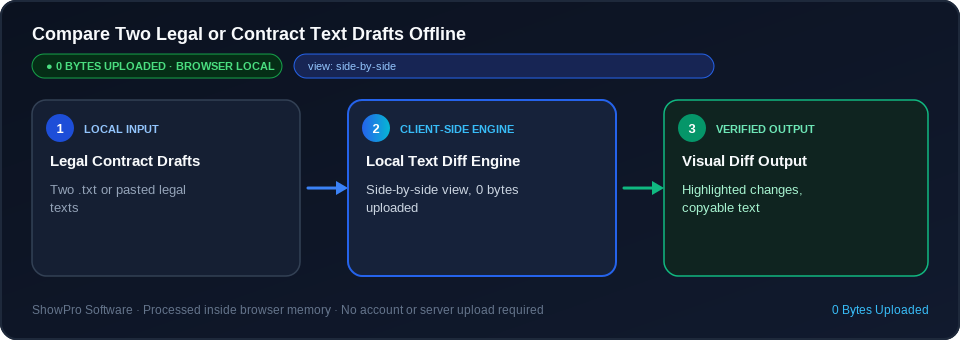
Compare two contract text versions locally, ensuring sensitive legal drafts never leave your browser. This tool is pre-configured for 'side-by-side' viewing, enabling direct visual comparison of changes without server uploads or account creation. Protect client confidentiality and maintain compliance with this privacy-first diff utility.
Workflow Checklist
- Verify all clause numbering (e.g., 'Section 3.1' vs. 'Article III, Section 1') aligns after diff.
- Confirm all monetary values (e.g., '$1,000,000.00' vs. 'one million dollars') match across drafts.
- Check for consistent party names (e.g., 'Acme Corp.' vs. 'Acme Corporation') in both versions.
- Ensure all defined terms (e.g., 'Effective Date', 'Governing Law') are identical or intentionally modified.
Parent Tool & Hub
Step-by-Step Guide: Compare Two Legal or Contract Text Drafts Offline
Follow these exact steps to complete this workflow locally in your browser without uploading files.
- 1
Open First Contract Draft File
Click 'Load File 1' and select your original contract draft (e.g., 'NDA_v1.docx' or 'ServiceAgreement_initial.txt') from your local drive. The content will load into the left panel.
Tip: Ensure both files are plain text or easily copy-pasted from Word/PDF. - 2
Open Second Contract Revision File
Click 'Load File 2' and select the revised contract draft (e.g., 'NDA_v2_final.docx' or 'ServiceAgreement_revised.txt'). Its content will appear in the right panel.
Tip: Use descriptive filenames to easily identify original vs. revision. - 3
Review Side-by-Side Differences
The tool automatically highlights additions, deletions, and modifications side-by-side. Scroll through both documents concurrently to identify all changes instantly.
Tip: Focus on red (deleted) and green (added) sections for quick review. - 4
Adjust View or Copy Text
While 'side-by-side' is preset, you can still copy the entire text from either panel or the combined diff if needed for further local editing in a text editor.
Tip: Use Ctrl+A (Windows) or Cmd+A (Mac) to select all text in a panel. - 5
Clear Documents for Next Comparison
Once your review is complete, close the browser tab or refresh the page to clear all loaded document text, ensuring no data persists in the browser's local storage.
Tip: This step is crucial for maintaining strict privacy after each use.
Technical Specifications & Preset Reference
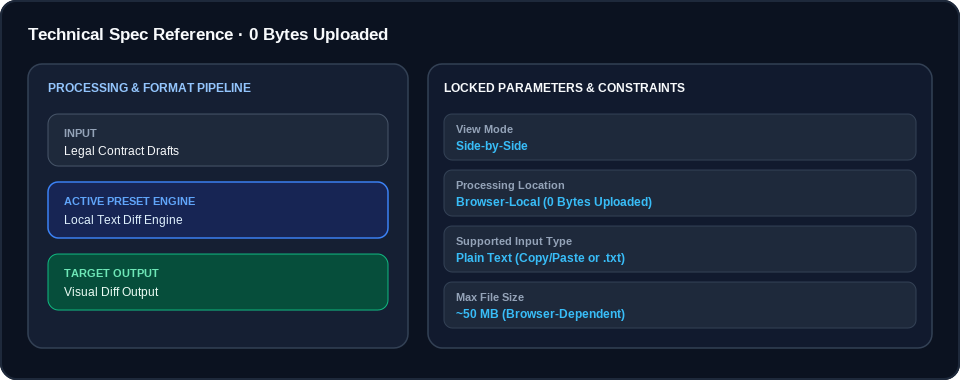
| Parameter | Recommended Setting | Why It Matters |
|---|---|---|
| View Mode | Side-by-Side | Essential for direct visual comparison of two legal drafts, allowing immediate identification of changes across lines. |
| Processing Location | Browser-Local (0 Bytes Uploaded) | Guarantees sensitive contract text never leaves your device, crucial for legal confidentiality and compliance. |
| Supported Input Type | Plain Text (Copy/Paste or .txt) | Ensures universal compatibility and accurate character-by-character comparison without complex document parsing. |
| Max File Size | ~50 MB (Browser-Dependent) | Accommodates lengthy legal documents without performance degradation, though very large files may slow browser response. |
| Output Format | Visual Diff + Raw Text (Copyable) | Provides both a clear visual representation of changes and the ability to extract the modified text for further use. |
Common Issues & Troubleshooting Fixes
Different Line Endings (CRLF vs. LF) causing spurious diffs.
Copy-paste both documents into a simple text editor (like Notepad++ or Sublime Text) and standardize line endings before comparing in ShowPro.
Invisible characters (e.g., non-breaking spaces) causing unexpected differences.
Before loading, use a text editor's 'Show All Characters' feature to reveal and remove any extraneous invisible characters from both drafts.
Comparing formatted documents (Word/PDF) directly leading to errors.
Always convert Word (.docx) or PDF files to plain text (.txt) first. Copy-pasting content into the browser directly also works well.
Browser tab crashing on extremely large legal documents.
Split very large contracts (e.g., >50,000 lines) into smaller, manageable sections for comparison to prevent browser memory limits.
Why Run This Workflow Locally in ShowPro?
Comparing contract drafts locally in your browser, rather than uploading to a remote server, is paramount for legal and financial documents. This approach ensures zero bytes of your sensitive agreements, client data, or proprietary clauses ever leave your machine. Avoid potential data breaches or compliance violations often associated with third-party cloud tools, maintaining strict client confidentiality and data integrity.
Frequently Asked Questions
Can I compare two Word documents directly?
No, this tool processes plain text. Convert your Word documents to plain text (.txt) or copy-paste the content directly into the tool's input fields for accurate comparison.
What if my contract has special characters or non-English text?
The tool handles UTF-8 encoded text, supporting a wide range of international characters. Ensure your source files are saved with UTF-8 encoding for best results.
Does this tool store my contract text anywhere?
Absolutely not. All processing occurs entirely within your browser's memory. No data is uploaded, stored, or logged by ShowPro Software, ensuring maximum privacy for your legal documents.
Can I save the diff output or changes?
The tool provides a visual diff. You can copy the text from either the original or modified panel, or even the combined diff text, and paste it into a local text editor to save.
Why are some identical lines highlighted as different?
This often indicates subtle, invisible differences like extra spaces, different line endings (CRLF vs. LF), or non-breaking spaces. Use a robust text editor to reveal and normalize these before comparison.