Find Added & Removed Lines Between Two Data Files
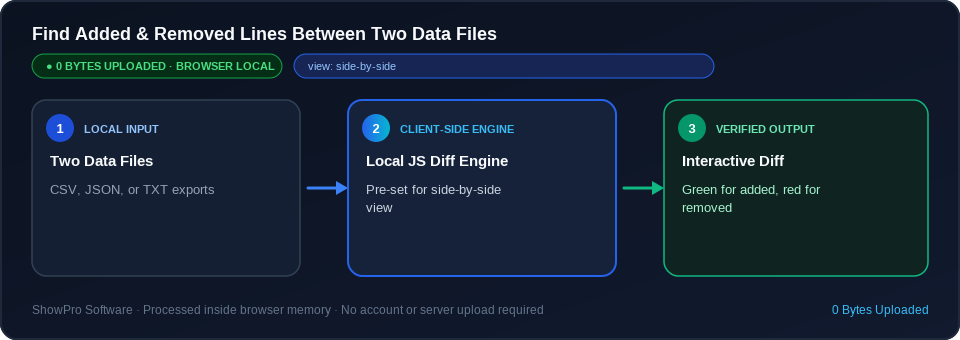
This tool helps you quickly find added, removed, or changed lines between two text-based files like CSV, JSON, or plain text. It's pre-configured for a 'side-by-side' view, perfect for direct visual comparison of data exports. All processing occurs locally in your browser, ensuring your sensitive business spreadsheets and contracts never leave your machine.
Workflow Checklist
- Verify both files are plain text, CSV, or JSON (not binary formats like XLSX or DOCX).
- Confirm character encoding (e.g., UTF-8) is consistent across both files for accurate comparisons.
- Ensure sensitive data like PII or financial records are handled locally, as 0 bytes are uploaded.
- Check for leading/trailing whitespace inconsistencies if lines appear different but content is identical.
Parent Tool & Hub
Step-by-Step Guide: Find Added & Removed Lines Between Two Data Files
Follow these exact steps to complete this workflow locally in your browser without uploading files.
- 1
Select Your First Data File
Click 'Choose File 1' and navigate to your baseline CSV, JSON, or TXT file. For Windows users, this often involves selecting from 'This PC' > 'Documents' or 'Downloads'.
Tip: Ensure your baseline file is the 'older' or 'original' version for clear diffing. - 2
Select Your Second Data File
Click 'Choose File 2' and select the newer version of your data file. This could be a recent Shopify export or a revised contract draft.
Tip: For consistent diffs, both files should ideally have the same character encoding (e.g., UTF-8). - 3
Initiate Local Comparison
After selecting both files, the diff process starts automatically. No 'upload' button is needed as all computation happens within your browser's memory.
Tip: Large files (over 50MB) may take a few seconds to process locally. - 4
Review Side-by-Side Differences
Examine the side-by-side view. Added lines are highlighted in green, removed lines in red, and changed lines often show both red (old) and green (new) components.
Tip: Look for line numbers to quickly identify changes in specific data rows or code blocks. - 5
Download Diff Report (Optional)
If available, use the 'Download Diff' option to save a summary of changes, useful for auditing or sharing with colleagues without exposing the original data.
Tip: The downloaded report is also generated locally and never touches external servers.
Technical Specifications & Preset Reference
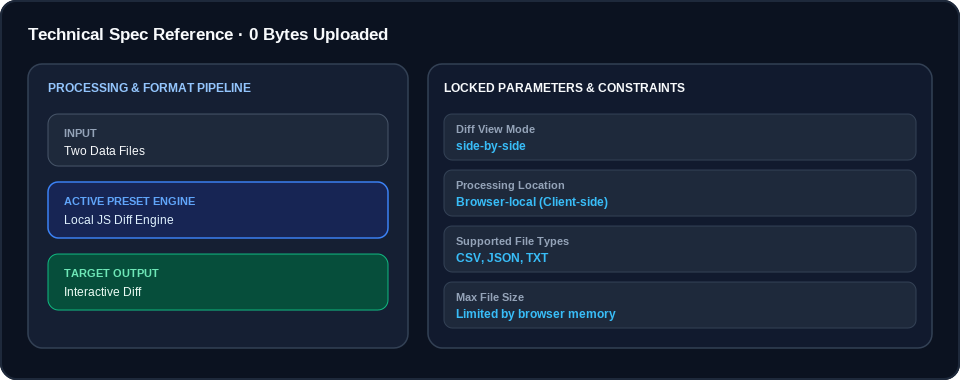
| Parameter | Recommended Setting | Why It Matters |
|---|---|---|
| Diff View Mode | side-by-side | This preset provides a direct visual comparison, crucial for quickly spotting changes in structured data files like CSVs or JSON arrays. |
| Processing Location | Browser-local (Client-side) | Ensures 0 bytes of your sensitive financial exports or legal documents are ever uploaded, maintaining strict data privacy and compliance. |
| Supported File Types | CSV, JSON, TXT | Optimized for common data export formats, allowing you to diff spreadsheets, API responses, or plain text configurations efficiently. |
| Max File Size | Limited by browser memory | While robust, extremely large files (e.g., >200MB) might strain browser resources, potentially impacting performance on older machines. |
| Output Format | HTML (interactive diff) | The interactive HTML output allows for easy navigation and visual identification of changes directly within your browser, without needing external tools. |
Common Issues & Troubleshooting Fixes
CSV files showing no differences despite clear changes.
Check if one CSV has a Byte Order Mark (BOM) and the other doesn't. Open in Notepad++, save both consistently as 'UTF-8 without BOM' for accurate diffing.
JSON files appearing as one long line, making diff unreadable.
Before diffing, use a JSON formatter tool (like ShowPro's JSON Formatter) to pretty-print both JSON files. This adds line breaks for effective line-by-line comparison.
Large files causing browser unresponsiveness or crashes.
If files exceed 100MB, try splitting them into smaller chunks using a text editor or command-line tools before diffing, or ensure you have ample RAM.
Diff highlighting showing entire lines changed for minor edits.
This tool is line-based. For character-level diffs within a line, you may need to copy specific lines into a dedicated text editor with advanced diffing capabilities.
Why Run This Workflow Locally in ShowPro?
Unlike remote diff services that require uploading your potentially sensitive data files to a server, this ShowPro tool performs all comparisons locally within your browser. This is critical for business spreadsheets, customer data exports, or legal contracts, ensuring zero data leakage. Your files never leave your machine, providing unparalleled privacy and compliance, especially vital when comparing USCIS forms or financial reports.
Frequently Asked Questions
Can I diff Excel (.xlsx) files directly?
No, this tool processes text-based files. For Excel, first save your spreadsheets as CSV (Comma Separated Values) from Excel's 'Save As' menu, then use those CSV files here.
What if my JSON file is minified?
Minified JSON is treated as a single long line. For a useful line-by-line diff, first pretty-print your minified JSON using a JSON formatter tool before loading it here.
Is there a limit on file size?
The limit is primarily your browser's available memory. Modern browsers can handle tens of megabytes, but extremely large files (e.g., >100MB) might cause performance issues.
Does this tool work offline?
Yes, once the page loads, all file processing happens entirely offline in your browser. No internet connection is required after the initial page load to perform diffs.
How do I interpret the colors in the diff?
Green lines indicate additions in File 2 compared to File 1. Red lines indicate removals (present in File 1, absent in File 2). Changed lines often appear as a red line followed by a green line.