Compress Image to 100KB Locally
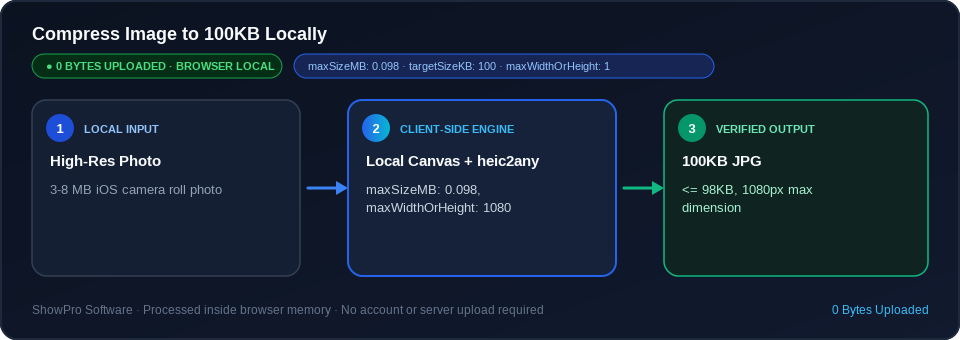
Shrink your images below the critical 100KB threshold for passport applications (DS-160), job portals, or forums without compromising privacy. This tool pre-loads optimal settings: a maximum file size of 98KB and a resolution cap of 1080 pixels on the longest side, all processed securely in your browser.
Workflow Checklist
- Verify final file size is under 100KB (e.g., 95KB) using OS file properties.
- Confirm the compressed image is a standard JPG format.
- Check visual clarity at 100% zoom for critical details like facial features.
- Upload to your target portal (e.g., USCIS, LinkedIn) to confirm acceptance.
Parent Tool & Hub
Step-by-Step Guide: Compress Image to 100KB Locally
Follow these exact steps to complete this workflow locally in your browser without uploading files.
- 1
Select Image File
Click 'Choose File' and select your JPG, PNG, or WebP image directly from your local drive (e.g., Mac Finder, Windows Explorer, or iPhone Photos app).
Tip: For iPhone HEIC, convert to JPG first via Share menu > Options > Automatic. - 2
Verify Preset Settings
Confirm the 'Max File Size' is set to 98KB and 'Max Width/Height' is 1080px. These are pre-configured for DS-160 compatibility.
Tip: Adjusting these values can impact quality and final file size dramatically. - 3
Initiate Local Compression
Click 'Compress Image'. The browser's HTML5 Canvas API will process your image locally, targeting the 100KB limit.
Tip: Processing time is instant for most images, as no upload/download occurs. - 4
Download Compressed Image
Once complete, a 'Download' button appears. Click it to save your new, optimized image (typically a JPG) to your device.
Tip: Check your browser's default downloads folder for the output file. - 5
Confirm File Size
Locate the downloaded file and check its properties (right-click > Get Info/Properties) to ensure it is indeed under 100KB.
Tip: If slightly over, re-compress with a slightly lower quality setting or dimension.
Technical Specifications & Preset Reference
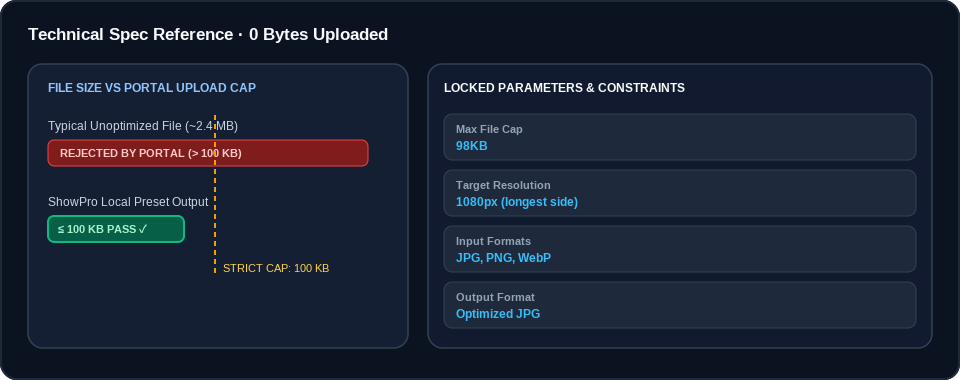
| Parameter | Recommended Setting | Why It Matters |
|---|---|---|
| Max File Cap | 98KB | Ensures strict compliance for portals like DS-160 which often have a hard 100KB limit, providing a small buffer. |
| Target Resolution | 1080px (longest side) | Maintains sufficient visual detail for most document and profile photos while reducing overall data for compression. |
| Input Formats | JPG, PNG, WebP | Covers the most common image types, with HEIC conversion handled by the browser's native capabilities. |
| Output Format | Optimized JPG | JPEG offers the best balance of quality and file size for photographic content under strict size constraints. |
| Processing Method | Browser-Local (HTML5 Canvas) | Guarantees zero data upload, safeguarding personal photos like passports or sensitive identification documents. |
Common Issues & Troubleshooting Fixes
DS-160 'Image Size is Not Valid' error (over 100KB)
Ensure your image is exactly 98KB or less. If still over, reduce the 'Quality' setting slightly and re-compress.
Passport photo looks pixelated after compression
Your original image might have been too low resolution. Start with a higher quality source photo before compressing to 100KB.
PNG with transparent background becomes black/white
This tool prioritizes JPG output for size. If transparency is critical, re-export your original PNG with a solid background first.
Image dimensions change unexpectedly (e.g., 600x600px required)
While we target 1080px max, if strict square dimensions are needed, use a separate cropping tool *before* compressing here.
Why Run This Workflow Locally in ShowPro?
Unlike cloud-based image compressors that require uploading your personal photos (like passport or ID shots) to external servers, ShowPro processes everything locally in your browser. This means your sensitive images never leave your device, ensuring absolute privacy when shrinking files to 100KB for critical applications like DS-160.
Frequently Asked Questions
Why is the target size 98KB instead of exactly 100KB?
We set a 98KB cap to provide a small buffer. Some systems might interpret 100.1KB as over the limit, so 98KB ensures consistent compliance for strict portals like DS-160 or job applications.
Will my image quality be noticeably reduced at 100KB?
For typical photographic content, the impact is minimal, especially with our 1080px resolution cap. The browser's Canvas API optimizes aggressively to maintain visual fidelity while hitting the 100KB target.
Can I compress multiple images to 100KB at once?
This specific tool is designed for single-image processing to ensure precise control over each file's size and quality. For bulk operations, please use our main 'Image Compressor' tool.
What if my original image is already very small, like 50KB?
If your image is already below 100KB, this tool will simply process it without significant changes, ensuring it remains under the threshold. No unnecessary re-compression will occur if already optimal.
Is my photo uploaded to ShowPro servers during compression?
Absolutely not. Your image is processed entirely within your web browser using JavaScript and HTML5 Canvas. No data leaves your device, guaranteeing your privacy for sensitive documents like passport photos.