Compress Image to 200KB Locally
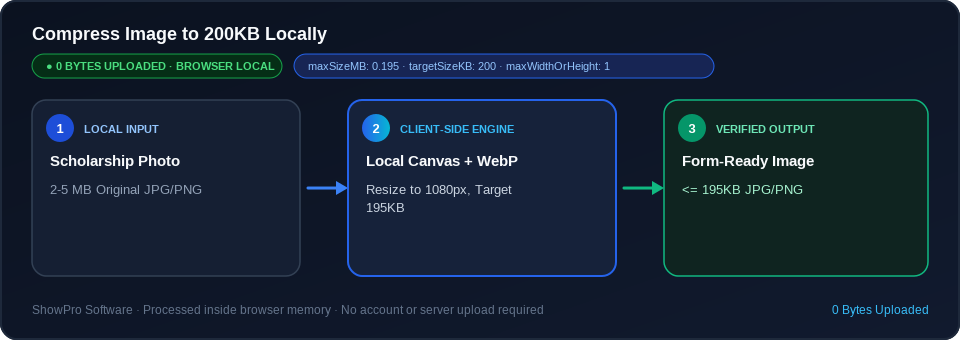
Shrink your images below 200KB instantly and privately. This tool pre-configures a target size of 195KB and a maximum resolution of 1080px on the longest side, perfect for university applications or scholarship forms that demand strict file size limits without compromising personal data privacy.
Workflow Checklist
- Confirm final image file size is strictly under 200KB (e.g., 195KB or less).
- Verify image dimensions (e.g., 1080px on longest side) meet submission requirements.
- Ensure image format (JPG or PNG) matches the portal's accepted types.
- Preview the image locally to check for acceptable visual quality before submission.
Parent Tool & Hub
Step-by-Step Guide: Compress Image to 200KB Locally
Follow these exact steps to complete this workflow locally in your browser without uploading files.
- 1
Drag Your Image File Here
Locate your JPG, PNG, or WebP image (e.g., from your 'Downloads' or 'Pictures' folder) and drag it directly into the designated drop zone on this page.
Tip: For iPhone HEIC photos, convert to JPG first using a tool like heic2any.js for best results. - 2
Verify Initial File Size
After dropping, the tool will display the original file size. Confirm it's above 200KB, indicating the need for compression.
Tip: If already under 200KB, no compression is needed; you can use the original file. - 3
Adjust Quality Slider (If Needed)
The tool automatically optimizes for 195KB. If the output is still too large, gently move the 'Quality' slider left to reduce file size further.
Tip: Prioritize resizing over quality reduction to maintain visual fidelity for portraits and documents. - 4
Review Compressed Output
Once processing completes, the new file size and dimensions will be displayed. Verify it's now under the 200KB target and looks acceptable.
Tip: Check for any unexpected pixelation or blur, especially with text-heavy images, before downloading. - 5
Download Your Compressed Image
Click the 'Download' button to save your newly compressed image directly to your device. No data leaves your browser.
Tip: Rename the downloaded file immediately (e.g., 'scholarship_photo_compressed.jpg') for easy submission.
Technical Specifications & Preset Reference
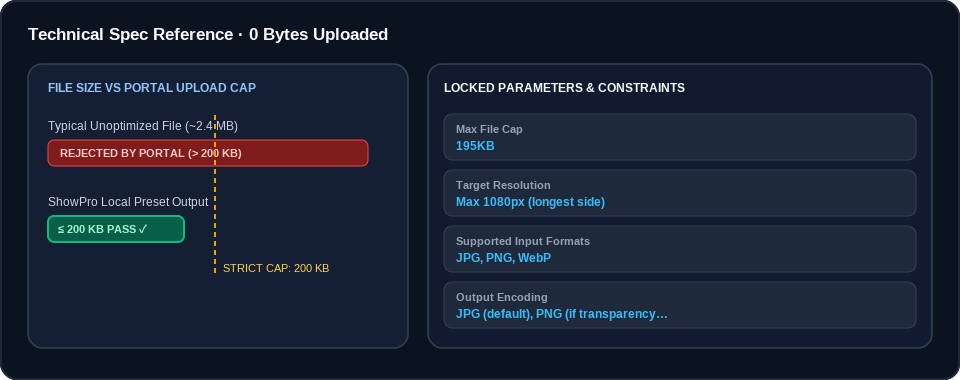
| Parameter | Recommended Setting | Why It Matters |
|---|---|---|
| Max File Cap | 195KB | Ensures compliance with most scholarship and university application portals that often enforce a strict 200KB limit. |
| Target Resolution | Max 1080px (longest side) | Maintains sufficient detail for web display without generating excessively large files, balancing quality with size. |
| Supported Input Formats | JPG, PNG, WebP | Covers the most common image formats used for personal photos and document scans required for online forms. |
| Output Encoding | JPG (default), PNG (if transparency needed) | JPG offers superior compression for photos, while PNG is crucial for images requiring transparent backgrounds. |
| Processing Location | Browser-Local (0 Bytes Uploaded) | Guarantees privacy for sensitive personal photos, as files never leave your device for server processing. |
Common Issues & Troubleshooting Fixes
Application portal rejects image as 'too large' despite showing 200KB
Some portals check exact bytes, not KB. Use the tool to target 195KB (199680 bytes) to ensure strict adherence to the 200KB (204800 bytes) limit.
Image looks blurry or pixelated after compression
This occurs if quality was reduced too much. Re-upload the original, try reducing resolution to 1080px first, then only slightly adjust quality.
PNG with transparency becomes black or white background
If the output format defaults to JPG, transparency is lost. Ensure you select PNG as the output format if your original image requires transparency.
Uploaded image appears stretched or squashed on form
This tool maintains aspect ratio. If the form's display area has different proportions, it might stretch. Check form guidelines for required aspect ratios.
Why Run This Workflow Locally in ShowPro?
Unlike server-based image compressors that upload your personal photos to remote servers, our tool processes everything locally in your browser. This is critical for sensitive documents like passport photos or personal identification, ensuring zero bytes of your image data ever leave your device, offering unparalleled privacy for your scholarship or university applications.
Frequently Asked Questions
Why is the target size 195KB instead of exactly 200KB?
Many online forms enforce a strict 200KB limit. Targeting 195KB (199,680 bytes) provides a small buffer, preventing rejection due to slight variations in how different systems calculate file sizes, ensuring successful submission.
Will compressing to 200KB significantly reduce image quality?
Our tool prioritizes smart resizing to 1080px on the longest side before aggressively reducing quality. For most photos, this maintains excellent visual fidelity while achieving the 200KB target, especially for web display.
Can I compress multiple images at once to 200KB?
This specific tool is designed for single-image processing to ensure precise control over each file's compression parameters. For batch processing, please visit our main Image Compressor tool page.
What if my image is already very small, like 50KB?
If your image is already below 200KB, this tool will not enlarge it. It will simply process it without further compression or resizing, allowing you to download the original file if no changes are needed.
Is my personal image data secure using this tool?
Absolutely. All image processing occurs directly within your web browser using HTML5 Canvas and WebAssembly. Your images are never uploaded to our servers, ensuring complete privacy and security for your sensitive files.