Compress Image to 1MB Locally
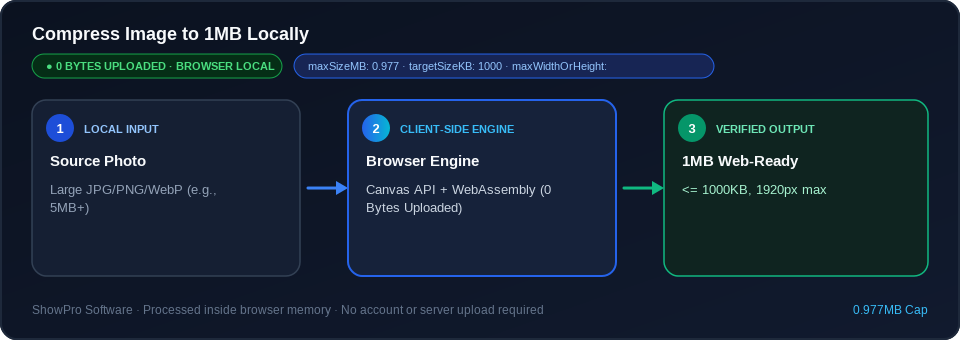
Shrink JPG, PNG, or WebP images below 1MB for strict website or listing caps without uploading private data. This tool is pre-configured to target a maximum file size of 0.977 MB (1000 KB) and a maximum dimension of 1920 pixels on the longest edge, all processed locally in your browser.
Workflow Checklist
- Verify final file size is <= 1000 KB (0.977 MB) using OS file properties.
- Confirm image dimensions are <= 1920 pixels on the longest edge.
- Check for any visual artifacts or excessive blurring if quality was reduced.
- Ensure the output format (JPG/PNG/WebP) matches the platform's requirement.
Parent Tool & Hub
Step-by-Step Guide: Compress Image to 1MB Locally
Follow these exact steps to complete this workflow locally in your browser without uploading files.
- 1
Select your image file(s)
Click 'Choose File' and select your high-resolution JPG, PNG, or WebP image from your computer or mobile device. For iOS, use the 'Share' menu to 'Save to Files' first.
Tip: Process up to 10 images simultaneously for batch compression. - 2
Verify local processing status
Observe the 'Processing Locally' indicator. Your image data never leaves your browser, ensuring privacy for personal photos or sensitive documents.
Tip: No 'uploading' progress bar means true local processing. - 3
Review compression results
The tool will automatically resize and compress. Check the 'Output Size' to confirm it's below 1.0 MB, ideally near 0.977 MB (1000 KB).
Tip: If still too large, try a slightly lower 'Quality' setting. - 4
Download compressed image
Click 'Download' to save the optimized image. It will retain its original filename with '-compressed' appended, e.g., 'photo-compressed.jpg'.
Tip: Right-click 'Download' and 'Save Link As...' for custom filenames. - 5
Verify file size post-download
Locate the downloaded file in your 'Downloads' folder. Right-click (Windows) or Cmd+I (Mac) on the file to confirm its size is under 1MB.
Tip: Some platforms like Shopify check exact file size upon upload.
Technical Specifications & Preset Reference
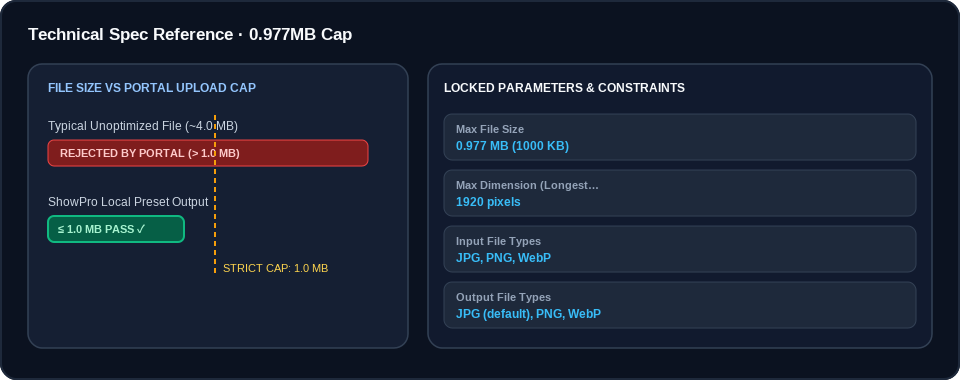
| Parameter | Recommended Setting | Why It Matters |
|---|---|---|
| Max File Size | 0.977 MB (1000 KB) | Strictly adheres to common 1MB upload limits for web portals, ensuring acceptance without rejection. |
| Max Dimension (Longest Edge) | 1920 pixels | Maintains excellent visual quality for web display while reducing overall pixel data for smaller file size. |
| Input File Types | JPG, PNG, WebP | Covers the most common web image formats, ensuring broad compatibility for your source files. |
| Output File Types | JPG (default), PNG, WebP | Provides flexibility to choose the best output format for your specific platform's requirements or quality needs. |
| Processing Location | Your Browser (Client-side) | Guarantees complete privacy; your images are never sent to a server, ideal for sensitive personal content. |
Common Issues & Troubleshooting Fixes
Image still exceeds 1MB after processing.
If the image is extremely detailed or already small, adjust the 'Quality' slider down slightly from the default to achieve the 1MB target.
Transparency lost on PNG images.
If outputting as JPG, PNG transparency will be converted to a white background. Choose 'PNG' as the output format to preserve transparency.
Image looks blurry or pixelated after compression.
This usually happens when the original image is very large and compressed aggressively. For critical images, start with a high-quality source and check the 'Quality' setting.
Portal rejects image due to incorrect dimensions, despite size.
While this tool targets 1MB, some portals (e.g., USCIS DS-160) have strict aspect ratio or minimum pixel requirements. Check those specific rules and adjust source image if needed.
Why Run This Workflow Locally in ShowPro?
Unlike server-side image compressors that upload your photos, this tool processes everything locally in your browser using HTML5 Canvas and WebAssembly. This is crucial for sensitive personal images or proprietary business assets, ensuring zero bytes ever leave your device. For a strict 1MB cap, local processing provides instant feedback without network delays or privacy concerns.
Frequently Asked Questions
Why is the target size 0.977 MB instead of exactly 1 MB?
Many systems interpret '1MB' as 1,000,000 bytes, while others use 1,048,576 bytes (1 MiB). Targeting 0.977 MB (1000 KB) ensures compliance with the stricter 1,000,000 byte limit, preventing portal rejections.
Will this tool work on my iPhone or Android device?
Yes, this tool runs entirely in your mobile browser. Simply open showprosoftware.com/tools/compress-image-to-1mb in Safari or Chrome, select your image, and download the compressed result to your camera roll or files.
What if my original image is already smaller than 1920 pixels?
If your image is already smaller than 1920 pixels on its longest edge, the tool will not upscale it. It will only apply compression to reduce the file size, preserving the original smaller dimensions.
Can I compress HEIC images with this tool?
Currently, direct HEIC input is not supported. For HEIC files, first convert them to JPG or PNG using your operating system's built-in tools (e.g., Mac Preview, iPhone 'Share' > 'Options' > 'Automatic' format) then upload here.
Does compressing an image to 1MB degrade its quality significantly?
The tool balances size and quality. By targeting 1920px on the longest edge and adjusting compression, it aims for minimal perceptible quality loss. For web use, a 1MB file at 1920px is generally excellent.