Convert 13-Digit Millisecond Epoch to Date Locally
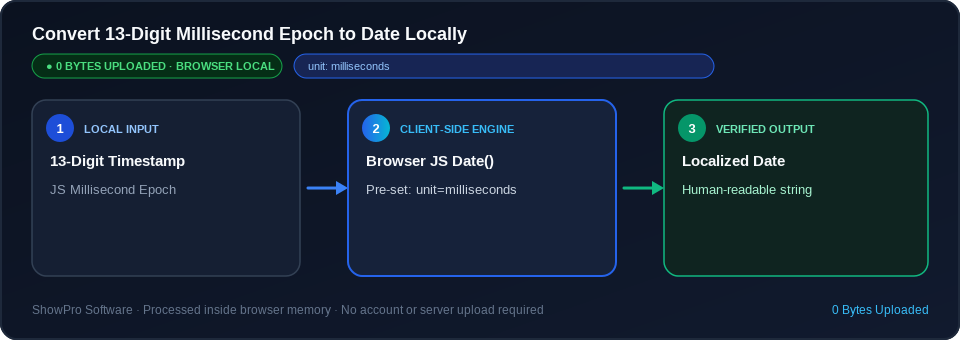
This utility converts 13-digit JavaScript millisecond Unix timestamps to human-readable dates, entirely within your browser. Ideal for debugging logs, API responses, or system tokens, it ensures sensitive data like proprietary timestamps never leave your device. The tool is pre-configured for 'milliseconds' unit input.
Workflow Checklist
- Confirm 13-digit length before pasting from Shopify API responses.
- Verify converted date matches expected year/month for Discord message timestamps.
- Check output timezone is appropriate for local log file analysis.
- Ensure no non-numeric characters are present if copying from a raw JSON payload.
Parent Tool & Hub
Step-by-Step Guide: Convert 13-Digit Millisecond Epoch to Date Locally
Follow these exact steps to complete this workflow locally in your browser without uploading files.
- 1
Locate 13-Digit Timestamp
Identify the 13-digit millisecond Unix timestamp from your source, such as a Discord webhook payload, a GitHub Actions log, or a proprietary system token. Ensure it's exactly 13 digits long.
Tip: Verify the timestamp's origin; some systems use seconds (10-digit) not milliseconds. - 2
Paste Timestamp into Input
Copy the 13-digit millisecond timestamp. Paste it directly into the 'Input Millisecond Timestamp' field on this page. The conversion will occur instantly as you type or paste.
Tip: Avoid pasting extra characters; only the numeric timestamp should be in the input field. - 3
Review Converted Date
Observe the 'Converted Date' output field. This will display the corresponding human-readable date and time, localized to your browser's timezone settings, such as 'YYYY-MM-DD HH:MM:SS GMT-0500 (Eastern Standard Time)'.
Tip: Note the timezone; it reflects your local browser settings, not necessarily UTC. - 4
Copy Result for Use
Click the 'Copy' button next to the 'Converted Date' output. This copies the full date string to your clipboard, ready for pasting into reports, documentation, or code comments.
Tip: Paste into a plain text editor first to strip any unintended formatting. - 5
Validate Conversion Accuracy
Cross-reference the converted date with a known event time if possible. For example, if a log entry has a timestamp, ensure the converted date roughly matches the log's context.
Tip: A quick sanity check against current time helps confirm scale (milliseconds vs. seconds).
Technical Specifications & Preset Reference
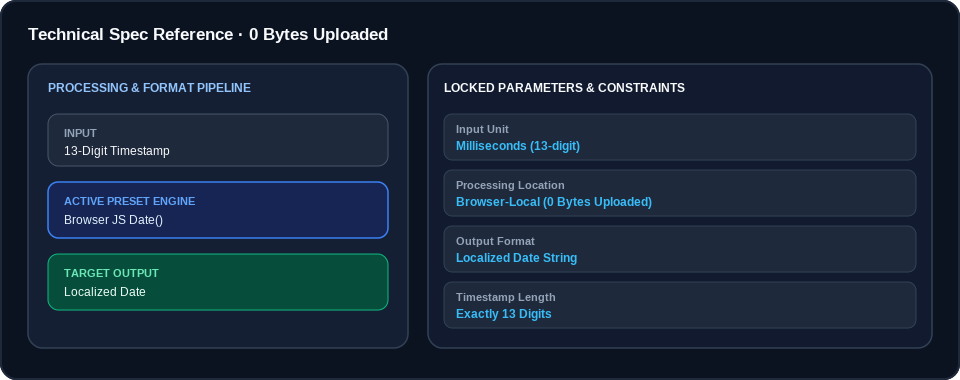
| Parameter | Recommended Setting | Why It Matters |
|---|---|---|
| Input Unit | Milliseconds (13-digit) | This preset specifically handles 13-digit inputs; 10-digit values (seconds) will yield incorrect dates. |
| Processing Location | Browser-Local (0 Bytes Uploaded) | Ensures sensitive internal timestamps from logs or tokens are never transmitted to external servers. |
| Output Format | Localized Date String | The output is formatted by your browser's locale, making it immediately readable without further parsing. |
| Timestamp Length | Exactly 13 Digits | A 13-digit integer is the standard for millisecond Unix epochs in JavaScript environments. |
| Required Permissions | None (No Account, No Cookies) | The tool operates entirely client-side, eliminating the need for user accounts or data storage. |
Common Issues & Troubleshooting Fixes
Inputting a 10-digit (seconds) timestamp
If the converted date is in the year 1970 or extremely far in the future, your input is likely 10-digit seconds. Multiply by 1000 before pasting, or use a dedicated 10-digit converter.
Pasting non-numeric characters
Ensure only the numeric 13-digit timestamp is in the input field. Remove any surrounding text, quotes, or commas that might be present in a JSON response or log file before pasting.
Misinterpreting the timezone
The output date uses your browser's local timezone. If you need UTC, subtract your local offset or use a dedicated UTC converter after obtaining the local time.
Timestamp is too old or too new for JavaScript Date object
JavaScript's Date object has limits (approx. +/- 100 million days from 1970). Extremely ancient or futuristic 13-digit timestamps may result in 'Invalid Date'. Verify the timestamp's validity range.
Why Run This Workflow Locally in ShowPro?
Unlike remote timestamp conversion sites that require uploading or transmitting your sensitive 13-digit log or token data, this ShowPro utility processes everything locally. Your proprietary system timestamps never leave your browser, ensuring complete privacy and security. This is critical for debugging internal systems where data leakage is unacceptable.
Frequently Asked Questions
Why is my converted date showing 1970?
A 1970 date typically indicates you've entered a 10-digit Unix timestamp (seconds) instead of a 13-digit millisecond timestamp. This tool expects milliseconds. Multiply your 10-digit value by 1000 before inputting.
Is my timestamp data sent to your servers?
No, absolutely not. All conversion logic for this 13-digit millisecond timestamp tool runs entirely within your web browser. Your data remains on your device, ensuring maximum privacy for sensitive information like API tokens or log entries.
Can I convert other timestamp units like seconds or microseconds?
This specific tool is pre-configured solely for 13-digit millisecond timestamps. For 10-digit second timestamps, please navigate to the parent 'Unix Timestamp' tool page and select the appropriate unit.
How accurate is the date conversion?
The conversion uses standard JavaScript Date object methods, providing highly accurate results down to the millisecond. The displayed output is formatted based on your browser's locale and timezone settings.
What if my timestamp is not 13 digits?
If your timestamp is not exactly 13 digits, it's likely not a standard JavaScript millisecond epoch. Inputting non-13-digit numbers here will produce incorrect or 'Invalid Date' results. Verify your source's timestamp format.