Number Pages Sequentially Across a Merged PDF
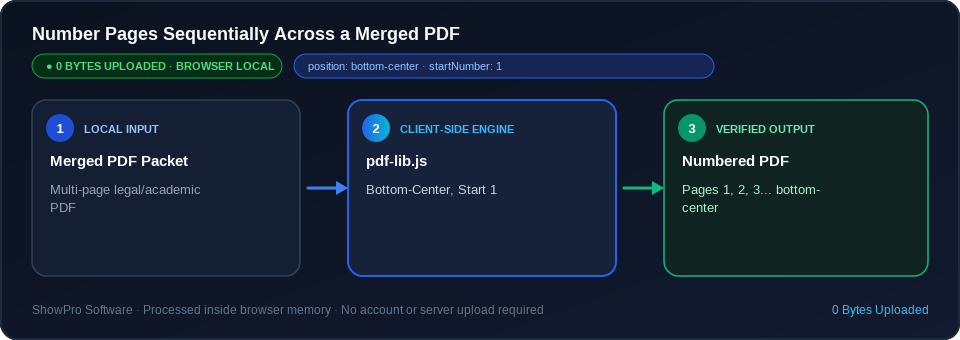
This tool instantly numbers pages sequentially across your merged PDF packets, directly in your browser. It solves the common issue of needing continuous numbering for multi-document PDF compilations, without uploading sensitive data. The tool is pre-configured to start numbering at '1' and place page numbers at the 'bottom-center' of each page.
Workflow Checklist
- Confirm page 1 of the output PDF clearly displays '1' at the bottom-center.
- Verify the last page of the output PDF shows the correct total page count (e.g., for a 15-page document, the last page should be '15').
- Check that no existing content (text, images, watermarks) is obscured by the new page numbers.
- Ensure the numbered PDF opens correctly in at least two different PDF viewers (e.g., Chrome's built-in viewer and Adobe Acrobat Reader).
Parent Tool & Hub
Step-by-Step Guide: Number Pages Sequentially Across a Merged PDF
Follow these exact steps to complete this workflow locally in your browser without uploading files.
- 1
Select Your Merged PDF File
Click the "Choose File" button to select your pre-merged PDF document from your local machine. This could be a compiled report, an application packet, or a legal brief.
Tip: Ensure your PDF is already merged into a single file before this step. - 2
Verify Start Number and Position
Confirm the "Start Number" is set to '1' and "Position" is 'Bottom-Center'. These are the default settings for sequential numbering across a packet.
Tip: Adjust these only if your specific document requires a different starting point or placement. - 3
Initiate Page Numbering
Click the "Add Page Numbers" button. The processing occurs instantly in your browser using client-side JavaScript (pdf-lib.js) without any server interaction.
Tip: Processing time is minimal, even for larger PDFs, as no upload is involved. - 4
Review and Download Numbered PDF
Once processed, a preview of your numbered PDF will appear. Verify the sequential numbering on a few pages, then click "Download" to save it locally.
Tip: The download filename will be clearly appended (e.g., 'yourfile_numbered.pdf'). - 5
Confirm Local File Integrity
Open the downloaded PDF in a native viewer like Adobe Acrobat Reader or Mac Preview to confirm all pages are correctly numbered from 1, bottom-center.
Tip: Check the final page to ensure the sequence hasn't been truncated unexpectedly.
Technical Specifications & Preset Reference
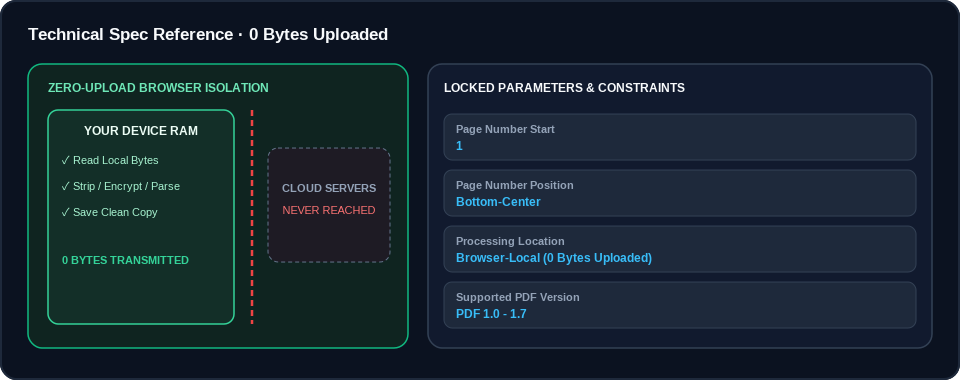
| Parameter | Recommended Setting | Why It Matters |
|---|---|---|
| Page Number Start | 1 | Ensures your merged PDF packet begins its sequential numbering from the very first page, critical for formal documents. |
| Page Number Position | Bottom-Center | Standard and unobtrusive placement for page numbers, preventing interference with document content or headers/footers. |
| Processing Location | Browser-Local (0 Bytes Uploaded) | Your sensitive merged PDF never leaves your device, ensuring maximum privacy and compliance for personal or corporate data. |
| Supported PDF Version | PDF 1.0 - 1.7 | Covers virtually all common PDF documents, from legacy scans to modern exports from applications like Microsoft Word or Google Docs. |
| Output File Type | PDF (with added page numbers) | Maintains the universal compatibility and integrity of your original document while embedding the new page numbering directly. |
Common Issues & Troubleshooting Fixes
Portal rejection for missing sequential page numbers (e.g., USCIS forms, academic submissions).
Use this tool to add 'bottom-center' numbers starting at '1' before submission, ensuring compliance with common administrative requirements.
Page numbers overlapping existing footer content or images.
While 'bottom-center' is standard, if overlap occurs, consider using the parent 'PdfAddPageNumbers' tool to select a different, less intrusive position (e.g., 'bottom-left' or 'top-right').
Original PDF is password-protected or encrypted, preventing numbering.
You must first remove any password protection from your PDF using a dedicated utility (e.g., Mac Preview's 'File > Export' with 'Encrypt' unchecked) before using this tool.
PDF appears blank or corrupted after numbering.
This can happen with highly complex or malformed PDFs. Try re-exporting the original PDF from its source application (e.g., 'Save As' in Word, 'Print to PDF') to create a cleaner base file.
Why Run This Workflow Locally in ShowPro?
Unlike cloud-based PDF processors that require uploading your entire merged document to a remote server, ShowPro's tool performs all numbering operations locally in your browser. This is crucial for sensitive documents like legal filings or personal financial packets, where data privacy is paramount. Zero bytes are ever uploaded, eliminating data breach risks and ensuring instant processing without network latency.
Frequently Asked Questions
Why are my page numbers not appearing after processing?
Ensure your browser supports modern JavaScript and hasn't blocked local storage or Web Workers. Clear your browser cache and try again. Very rarely, an extremely malformed PDF might prevent successful modification.
Can I choose a different font or size for the page numbers?
This specific tool is pre-configured for a standard, legible font and size for sequential numbering. For custom font/size options, please use our main 'PDF Add Page Numbers' tool, which offers more granular controls.
What if my PDF already has some page numbers?
This tool will add *new* sequential page numbers. If your PDF already has existing numbering, the new numbers will appear alongside or on top of them. You might need to remove existing numbering first if you want only the new sequence.
Is there a limit to the number of pages or file size?
Since processing is local, limits are primarily dictated by your device's RAM and CPU. Most modern browsers and computers can handle PDFs with hundreds of pages and file sizes up to several hundred megabytes without issue.
Can I number specific ranges of pages instead of the whole document?
No, this tool is specifically designed to number *all* pages sequentially across the *entire* merged PDF starting from 1. For range-specific numbering, you would need to use a more advanced PDF editor.