Compress Oversized Mac Preview PDFs Locally
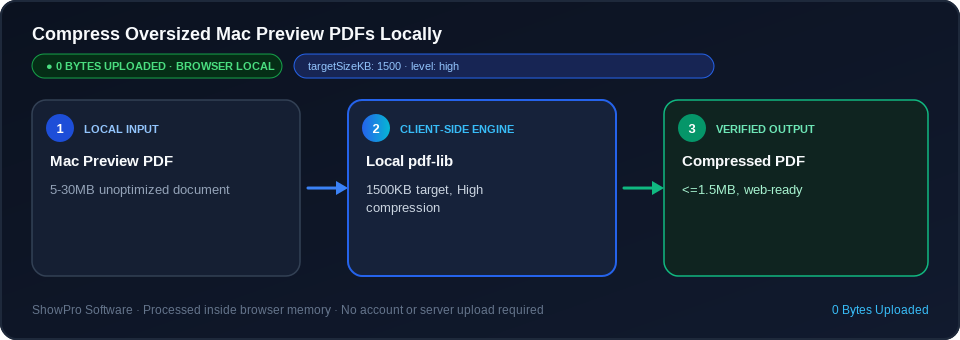
Quickly reduce the file size of PDFs created by Apple Preview, often bloated by unoptimized image data. This tool is pre-configured to target a file size of 1.5MB (1500KB) with a 'high' compression level, ensuring compliance for common online portals like USCIS or university applications, all processed directly in your browser without any uploads.
Workflow Checklist
- Verify final PDF size is <= 1.5MB in Finder's 'Get Info' panel.
- Check all text fields are legible and images clear enough for portal review.
- Ensure all pages of the original document are present in the compressed version.
- Confirm the compressed PDF opens correctly in Adobe Acrobat Reader or Preview.
Parent Tool & Hub
Step-by-Step Guide: Compress Oversized Mac Preview PDFs Locally
Follow these exact steps to complete this workflow locally in your browser without uploading files.
- 1
Select Your Mac Preview PDF
Click 'Choose File' and navigate to your oversized PDF document in Finder. This tool specifically targets PDFs generated or last saved by Apple Preview.
Tip: Verify the PDF's origin by right-clicking in Finder > Get Info > More Info > Creator. - 2
Initiate Local Compression
With your Mac Preview PDF loaded, the browser-local compression engine will automatically begin processing. No 'upload' button is needed as processing occurs entirely on your device.
Tip: Keep your browser tab active during processing for optimal performance. - 3
Monitor Progress and Output
Observe the progress indicator. The tool uses a 'high' compression level to aggressively reduce file size, aiming for the 1500KB target by optimizing embedded images.
Tip: Large PDFs (e.g., >50MB) may take a minute or two to process locally. - 4
Download Your Compressed PDF
Once complete, a 'Download Compressed PDF' button will appear. Click it to save your newly optimized document to your Mac's Downloads folder.
Tip: The output filename will include '_compressed' to easily distinguish it from the original. - 5
Verify File Size and Quality
Open the downloaded PDF in Preview or Finder, then press Command+I to check its new file size. Visually inspect pages for acceptable quality, especially text and embedded images.
Tip: If still too large, re-process with a lower target size, or try a different compression level if available.
Technical Specifications & Preset Reference
| Parameter | Recommended Setting | Why It Matters |
|---|---|---|
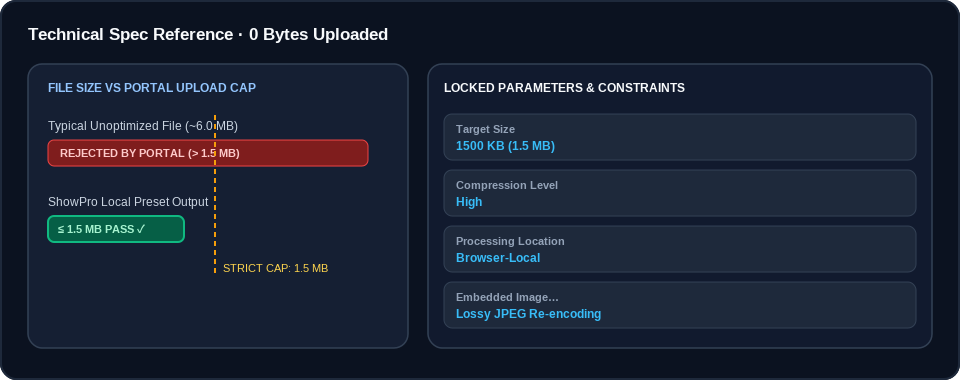
| Target Size | 1500 KB (1.5 MB) | This size is commonly required by government portals (e.g., USCIS, DS-160) and university application systems. |
| Compression Level | High | Aggressively reduces image quality and removes redundant data to meet strict file size limits from Mac Preview PDFs. |
| Processing Location | Browser-Local | Your sensitive Mac Preview documents never leave your device, ensuring maximum privacy and security with 0 bytes uploaded. |
| Embedded Image Optimization | Lossy JPEG Re-encoding | The primary method for reducing Mac Preview PDF bloat, as Preview often embeds images unoptimized or as large bitmaps. |
| PDF Library | pdf-lib (Browser-WASM) | A robust JavaScript library enabling advanced PDF manipulation and compression entirely within your web browser. |
Common Issues & Troubleshooting Fixes
PDF still exceeds 1.5MB after compression.
The 'High' compression is already applied. If the PDF contains extremely high-resolution scans or many pages, try reducing the 'Target Size KB' further or manually removing unnecessary pages in Preview first.
Text appears blurry or images pixelated.
This is a side effect of 'High' compression. If visual quality is paramount and the portal allows a larger file, adjust the 'Compression Level' to 'Medium' or 'Low' if available, or increase the target size.
Some portal rejects the compressed PDF.
Ensure the portal's specific PDF version requirement (e.g., PDF/A) is met. While this tool focuses on size, some strict portals might reject modified PDFs. Check their exact specifications.
Original Mac Preview PDF was already small, but output is larger.
This is rare. If the original was highly optimized, re-encoding might slightly increase size. Verify the original file size; if it's already under 1.5MB, compression is unnecessary.
Why Run This Workflow Locally in ShowPro?
Unlike cloud-based PDF compressors that require uploading your sensitive Mac Preview documents to external servers, this tool performs all compression locally in your browser. This means your private files, potentially containing personal data or financial records, never leave your device, offering unmatched privacy and speed for compliance with 1.5MB limits.
Frequently Asked Questions
Why do Mac Preview PDFs get so large?
Preview often embeds images without aggressive optimization, especially when scanning documents or combining multiple files. This can lead to bloated files containing uncompressed bitmap data, quickly exceeding typical portal limits.
Will this tool work on PDFs not created by Mac Preview?
Yes, while optimized for Preview's common bloat, this tool can compress any PDF. However, the 'high' compression and 1.5MB target are specifically chosen to address common Mac Preview PDF over-sizing issues effectively.
Is there a limit to the original PDF file size?
The only practical limit is your browser's memory and CPU. Very large PDFs (e.g., hundreds of MBs or thousands of pages) might take longer or cause browser slowdowns, but there's no artificial upload cap since nothing is uploaded.
Can I adjust the 1.5MB target or compression level?
This page is pre-configured for 1.5MB and 'high' compression. For custom settings, visit the main 'Compress PDF' tool page where you can manually set target sizes and choose different compression levels to suit other requirements.
Does this tool remove any PDF features like annotations or form fields?
The compression focuses on image optimization and removing redundant data. It aims to preserve annotations, form fields, and other PDF features. However, always verify the output for critical elements after compression.