Optimize Resume PDF Under 2MB for LinkedIn & ATS
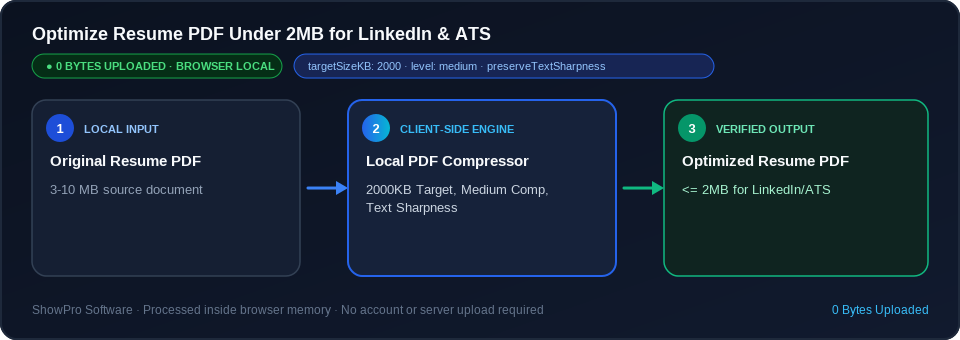
This tool is pre-configured to optimize your resume PDF for LinkedIn and Applicant Tracking Systems (ATS), ensuring it's under the critical 2MB limit. Your file is processed entirely within your browser using a 'medium' compression level and preserving text sharpness, guaranteeing privacy and readability.
Workflow Checklist
- Verify final PDF size is <= 2.0 MB using your OS file properties (Mac Finder 'Get Info', Windows Explorer 'Properties').
- Open the optimized PDF in Adobe Reader or Preview to confirm all text is sharp and legible.
- Check for any unexpected layout shifts or missing elements, especially if your original PDF had complex graphics.
- Upload a test version to a dummy LinkedIn profile or a friend's ATS to confirm successful parsing.
Parent Tool & Hub
Step-by-Step Guide: Optimize Resume PDF Under 2MB for LinkedIn & ATS
Follow these exact steps to complete this workflow locally in your browser without uploading files.
- 1
Select Your Resume PDF File
Click 'Choose File' and navigate to your resume PDF. On Windows, locate it via File Explorer; on macOS, use Finder. Ensure it's the final version.
Tip: Rename your PDF to 'FirstName-LastName-Resume.pdf' for ATS compatibility. - 2
Verify Pre-Configured Settings
Confirm the 'Target Size' is set to '2000 KB (2 MB)' and 'Compression Level' is 'Medium'. 'Preserve Text Sharpness' is also enabled by default.
Tip: These settings are optimized for visual quality and file size for LinkedIn. - 3
Initiate Local Compression
Click the 'Compress PDF' button. The process occurs instantly in your browser using pdf-lib, with no data ever leaving your device.
Tip: Avoid navigating away until the 'Download' button appears. - 4
Download Optimized Resume
Once complete, a 'Download Optimized PDF' button will appear. Click it to save your compressed resume to your default downloads folder.
Tip: Check your browser's download history if you can't locate the file. - 5
Upload to LinkedIn & ATS
Proceed to LinkedIn's profile section or your target ATS portal and upload the newly downloaded, optimized PDF. Verify it meets their requirements.
Tip: Always preview your resume after uploading to ensure formatting integrity.
Technical Specifications & Preset Reference
| Parameter | Recommended Setting | Why It Matters |
|---|---|---|
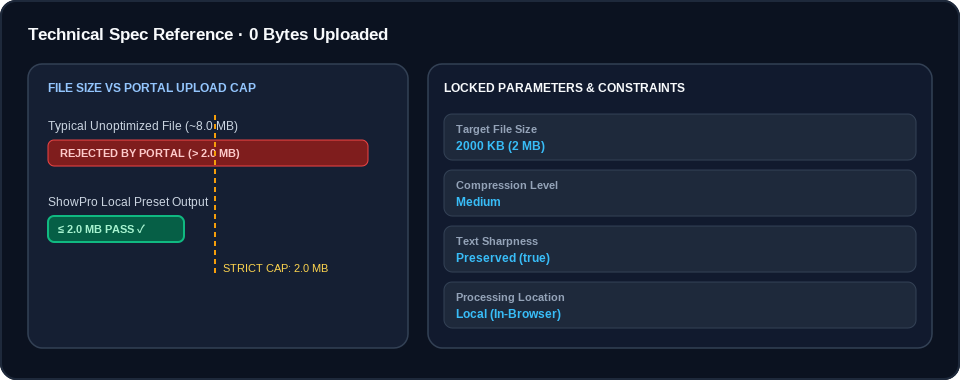
| Target File Size | 2000 KB (2 MB) | Crucial for LinkedIn's 2MB resume upload limit and common ATS constraints, preventing rejection. |
| Compression Level | Medium | Balances file size reduction with visual fidelity, ensuring text and graphics remain clear. |
| Text Sharpness | Preserved (true) | Essential for readability of contact info, dates, and bullet points, critical for hiring managers. |
| Processing Location | Local (In-Browser) | Ensures zero data upload, maintaining privacy of personal information on your resume. |
| Output Format | PDF (ISO 32000) | Universal standard for resumes, guaranteeing compatibility across all ATS and viewing platforms. |
Common Issues & Troubleshooting Fixes
LinkedIn 'File too large' error
Ensure the 'Target Size' was set to 2000 KB and re-process. If still large, try reducing image resolutions within the source document before re-compressing.
Blurry text or graphics after compression
This preset prioritizes text sharpness. If blurriness occurs, check the original PDF quality or consider a 'low' compression setting if visual elements are critical.
ATS rejection for unreadable content
Always visually inspect the optimized PDF before uploading. This tool's 'preserveTextSharpness' minimizes this, but complex layouts might need manual review.
Source PDF is already very small (e.g., <500KB)
For very small PDFs, compression might yield minimal size reduction. This tool won't inflate your file; it will simply apply the preset optimization without significant change.
Why Run This Workflow Locally in ShowPro?
Unlike remote PDF compression sites that upload your sensitive resume data to external servers, ShowPro processes your file entirely within your browser. This local approach, powered by JavaScript APIs like pdf-lib, guarantees 0 bytes are ever transmitted, protecting your personal information (name, contact, work history) from potential breaches or logging, crucial for a document as private as a resume.
Frequently Asked Questions
Why is 2MB the critical size for LinkedIn?
LinkedIn imposes a 2MB file size limit for resume uploads. Exceeding this will result in an upload failure, preventing you from showcasing your professional experience effectively.
Will this tool change my resume's formatting?
No, this tool primarily optimizes the underlying PDF data (like image quality) without altering the document's layout, fonts, or structure. Your resume's visual integrity is maintained.
Is my resume truly private with this tool?
Absolutely. All processing occurs locally in your web browser. Your resume PDF never leaves your device and is not uploaded to any server, ensuring complete privacy and security.
What if my original PDF is already under 2MB?
If your PDF is already under 2MB, this tool will still apply the 'medium' compression and text sharpness preservation, but the size reduction might be minimal or none, especially for text-heavy documents.
Can I use this for other job portals besides LinkedIn?
Yes, many ATS and job portals have similar file size restrictions (often 2MB, 5MB, or 10MB). The 2MB optimization is a safe bet for most, ensuring broad compatibility.