Shrink Oversized PDF for Standard Email Limits
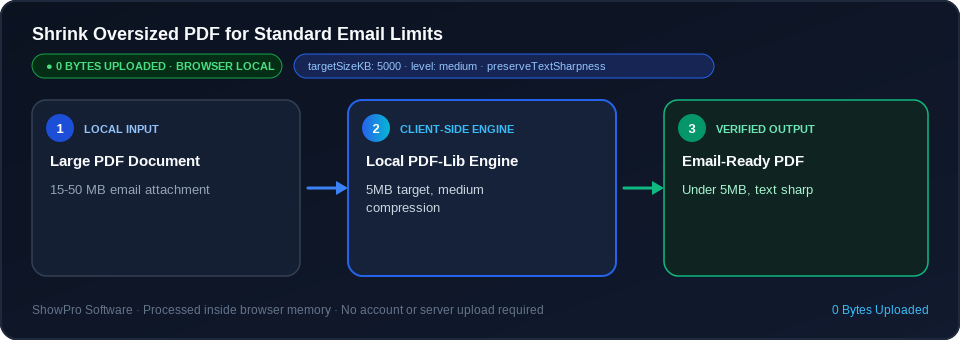
This tool is pre-configured to quickly shrink large PDFs for email, ensuring they fit common 5MB attachment limits. It processes your document entirely in your browser, keeping your data private. The preset targets a maximum size of 5MB with a 'medium' compression level, prioritizing text sharpness.
Workflow Checklist
- Verify final PDF size is under 5MB (e.g., 4.8MB).
- Open the compressed PDF to confirm all pages and content are intact.
- Check text sharpness, especially for small fonts or technical diagrams.
- Ensure any embedded images are legible, even if slightly lower resolution.
Parent Tool & Hub
Step-by-Step Guide: Shrink Oversized PDF for Standard Email Limits
Follow these exact steps to complete this workflow locally in your browser without uploading files.
- 1
Select Your Oversized PDF File
Click 'Choose File' and navigate to your PDF. On Windows, locate it in File Explorer; on macOS, find it via Finder or your desktop. The tool will load it instantly.
Tip: If your PDF is on iCloud.com, download it to your local machine first. - 2
Verify Pre-Configured Settings
Confirm the 'Target Size' is set to 5MB and 'Compression Level' is 'Medium'. 'Preserve Text Sharpness' is also enabled to maintain readability, crucial for documents like invoices.
Tip: These settings are optimized for typical email server attachment maximums. - 3
Initiate Local PDF Compression
With your file loaded and settings verified, click the 'Compress PDF' button. Processing occurs entirely within your browser using WebAssembly, with no data ever leaving your device.
Tip: Processing time varies with PDF size and your device's CPU speed. - 4
Download Your Optimized PDF
Once complete, a 'Download Compressed PDF' button will appear. Click it to save the smaller file to your default downloads folder (e.g., C:\Users\YourName\Downloads).
Tip: Rename the downloaded file immediately to avoid overwriting originals. - 5
Attach to Email and Send
Open your email client (e.g., Gmail, Outlook), create a new message, and attach the newly compressed PDF. Confirm its size is now below your email provider's limit, typically 20-25MB.
Tip: Always check the final file size in File Explorer or Finder before attaching.
Technical Specifications & Preset Reference
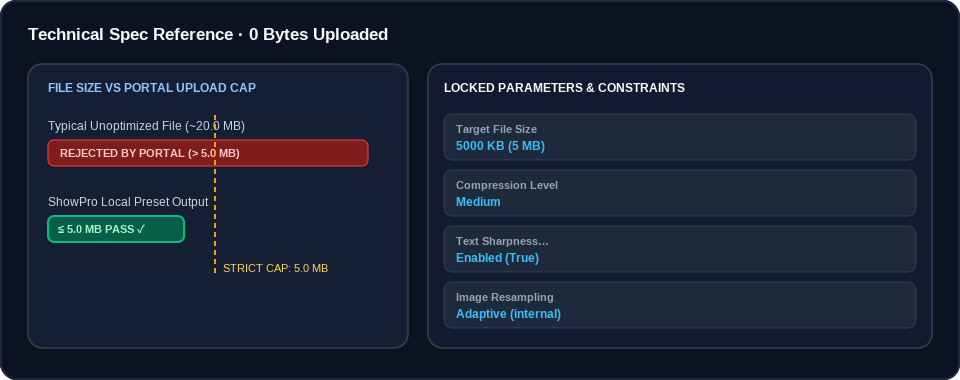
| Parameter | Recommended Setting | Why It Matters |
|---|---|---|
| Target File Size | 5000 KB (5 MB) | Ensures compatibility with most standard email attachment limits, often capped at 5-25 MB. |
| Compression Level | Medium | Balances file size reduction with visual quality, preventing excessive image degradation for email recipients. |
| Text Sharpness Preservation | Enabled (True) | Crucial for maintaining readability of text-heavy documents like contracts or reports after compression. |
| Image Resampling | Adaptive (internal) | Intelligently downscales large images to reduce their footprint without severely impacting visual clarity for display. |
| Font Subset Embedding | Optimized (internal) | Removes unused font data, significantly reducing file size while ensuring all text displays correctly on recipient's device. |
Common Issues & Troubleshooting Fixes
PDF still too large for email after compression.
Re-run the compression, ensuring the 'Target Size' is set to 5000 KB. If it's an image-heavy PDF, the 'Medium' level might not be sufficient; consider using the main 'Compress PDF' tool with a 'High' setting if visual quality can be slightly sacrificed.
Text appears blurry or pixelated in the compressed PDF.
This tool has 'Preserve Text Sharpness' enabled by default. If you used different settings, ensure this option is active. For extremely large original PDFs, very aggressive compression might still impact text; verify original quality first.
Email client rejects the attachment without clear reason.
Double-check the file size in your OS (e.g., right-click > Properties on Windows, or Cmd+I on Mac). Some email providers have strict filename rules or block certain embedded content types; ensure it's a standard PDF/A-1b compliant file.
PDF opens blank or corrupted after compression.
This is rare with ShowPro's local processing. Try opening the original PDF in a different viewer (e.g., Adobe Acrobat Reader, Mac Preview). If the original is fine, clear your browser cache and try re-compressing the document.
Why Run This Workflow Locally in ShowPro?
Unlike cloud-based PDF compressors that require uploading your sensitive documents to external servers, ShowPro processes your PDF entirely within your browser. This means 0 bytes of your file ever leave your device, ensuring maximum privacy and security for confidential reports or personal documents when shrinking them for email attachments. No account, no uploads, just fast, local compression.
Frequently Asked Questions
Why is my PDF still large even after using this tool?
This tool targets 5MB. If your original PDF is extremely large (e.g., hundreds of MBs with high-res scans), 'Medium' compression might not achieve a drastic enough reduction. Consider using the main 'Compress PDF' tool with 'High' settings.
Does this tool remove any content from my PDF?
No, it optimizes existing content. It primarily reduces image resolution, removes redundant data, and subsets fonts. It does not remove pages, text, or images from your document, ensuring content integrity for email sharing.
Can I adjust the 5MB target size?
This specific tool is pre-configured for 5MB for email limits. For custom target sizes, please navigate to our main 'Compress PDF' tool where you can manually set any desired file size or compression level.
Is my compressed PDF compatible with all PDF viewers?
Yes, ShowPro outputs standard PDF/A-1b compliant files. They are universally compatible with Adobe Acrobat Reader, Mac Preview, browser-based PDF viewers, and other standard PDF software, ensuring recipients can open them.
What if my email attachment limit is higher or lower than 5MB?
While this tool is optimized for common 5MB limits, if your provider has a 25MB limit (e.g., Gmail) or a 2MB limit, you can use our main 'Compress PDF' tool to set a precise custom target size that matches your specific requirement.