Combine Separately Scanned PDF Pages Into One
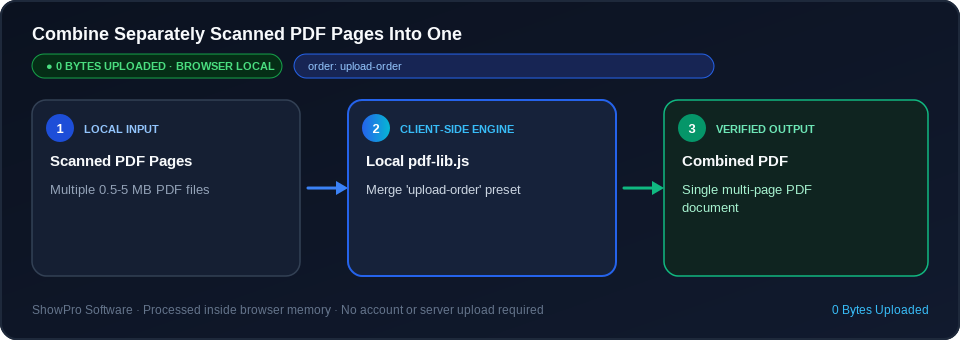
Effortlessly combine multiple scanned PDF pages into a single document right in your browser. This tool is pre-configured to merge files in their upload order, ideal for sequentially scanned documents. No file uploads, no account, just instant local processing to protect your sensitive information.
Workflow Checklist
- Verify final PDF page count matches sum of individual input pages.
- Confirm all text and images are legible and correctly oriented in the merged document.
- Check the output PDF's file size against any specific portal upload limits (e.g., 5MB for Discord, 25MB for some email attachments).
- Ensure the merged PDF is searchable if your original scanned PDFs contained OCR text layers.
Parent Tool & Hub
Step-by-Step Guide: Combine Separately Scanned PDF Pages Into One
Follow these exact steps to complete this workflow locally in your browser without uploading files.
- 1
Gather Scanned PDF Pages
Locate your individual scanned PDF pages. For iPhone users, transfer pages from Photos via 'Share' > 'Save to Files' to a single folder on iCloud Drive or local storage.
Tip: Name files numerically (e.g., 'page-01.pdf') for easy organization. - 2
Open ShowPro Combine Tool
Navigate to showprosoftware.com/tools/combine-scanned-pages-into-single-pdf. This specific tool is preset to combine files in the order they are added.
Tip: Bookmark this URL for quick access to the pre-configured tool. - 3
Add PDF Files to Merge
Drag-and-drop your individual scanned PDF files from your file explorer (Finder on Mac, Explorer on Windows) directly into the designated area on the page.
Tip: Select all pages at once for faster addition and to preserve upload order. - 4
Verify Page Order
Visually confirm the displayed thumbnails match your intended page sequence. Since 'upload-order' is preset, ensure your drag-and-drop sequence is correct.
Tip: Rearrange any misordered pages by dragging their thumbnails before merging. - 5
Download Combined PDF
Click the 'Combine PDF' button. The tool processes your files locally using pdf-lib.js, then prompts you to download the merged PDF to your device.
Tip: Check the output PDF immediately in your default PDF viewer for integrity.
Technical Specifications & Preset Reference
| Parameter | Recommended Setting | Why It Matters |
|---|---|---|
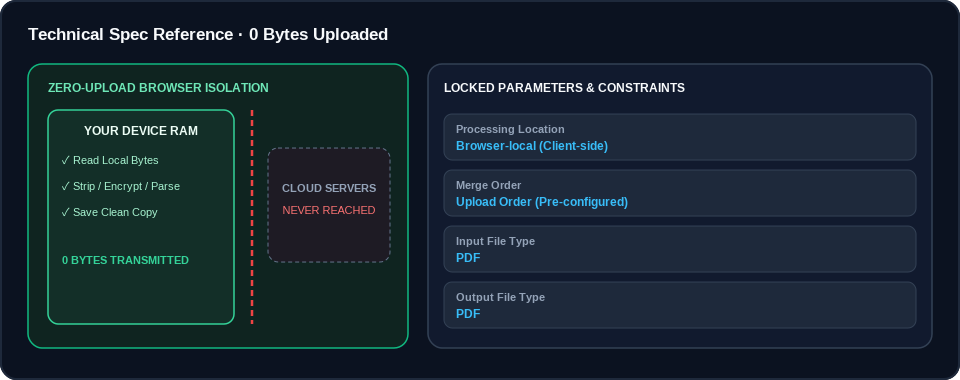
| Processing Location | Browser-local (Client-side) | Ensures 0 bytes of your sensitive scanned documents are ever uploaded, maintaining complete privacy for forms or records. |
| Merge Order | Upload Order (Pre-configured) | Guarantees that pages are combined exactly as you add them, streamlining workflows for sequentially scanned multi-page documents. |
| Input File Type | Optimized specifically for existing PDF pages, ensuring high fidelity and preserving original scan quality during the merge operation. | |
| Output File Type | Generates a standard PDF, compatible with all readers and official portals like USCIS or DS-160, without format conversion issues. | |
| Dependencies | pdf-lib.js (WASM) | Leverages a robust, open-source library for efficient, offline PDF manipulation directly within your web browser environment. |
Common Issues & Troubleshooting Fixes
Scanned pages appear out of sequence in the final PDF.
Ensure you drag and drop files in the correct numerical or logical order. This tool uses 'upload-order' as preset, so the sequence you add them is critical.
Final PDF file size is unexpectedly large or slow to open.
While merging doesn't compress, check original scan settings. If source PDFs are very high resolution, consider using a separate tool to optimize individual pages first.
Pages from different scan batches have inconsistent orientation.
Rotate individual PDF pages to the correct orientation using a dedicated PDF editor (like Mac Preview) before uploading them to this tool for merging.
Merged PDF is rejected by a government portal like USCIS.
Verify the total page count and file size meet the portal's specific limits. This tool combines but doesn't validate against external requirements.
Why Run This Workflow Locally in ShowPro?
Unlike remote PDF merge services that require uploading sensitive scanned documents to their servers, ShowPro processes everything locally in your browser. This is critical for scanned pages containing personal data, financial records, or legal forms, as it completely eliminates the risk of data interception or storage on third-party infrastructure, ensuring absolute privacy and security for your 'combine separate scanned pdf pages locally' workflow.
Frequently Asked Questions
Can I combine scanned images (JPG, PNG) directly with this tool?
No, this specific tool is designed only for combining existing PDF files. For scanned images, first convert them to individual PDFs using an image-to-PDF tool, then use this merge utility.
What if my scanned pages have different dimensions or orientations?
The tool will combine them as-is. It's best practice to ensure all scanned pages have consistent dimensions and orientation *before* merging them to maintain a uniform document appearance.
Is there a limit to how many PDF pages I can combine?
There's no hard limit imposed by the tool itself, but performance depends on your device's memory and CPU. For hundreds of pages, expect longer processing times locally.
Does merging affect the quality or resolution of my scanned PDFs?
No, this tool performs a lossless merge. It combines the existing PDF pages without re-encoding, compressing, or altering their original quality or resolution.
Can I reorder pages after I've added them to the tool?
Yes, you can drag and drop the thumbnail previews of your added PDF pages to change their order before initiating the merge process, overriding the initial 'upload-order'.