Add Bottom-Center Page Numbers to Legal PDF
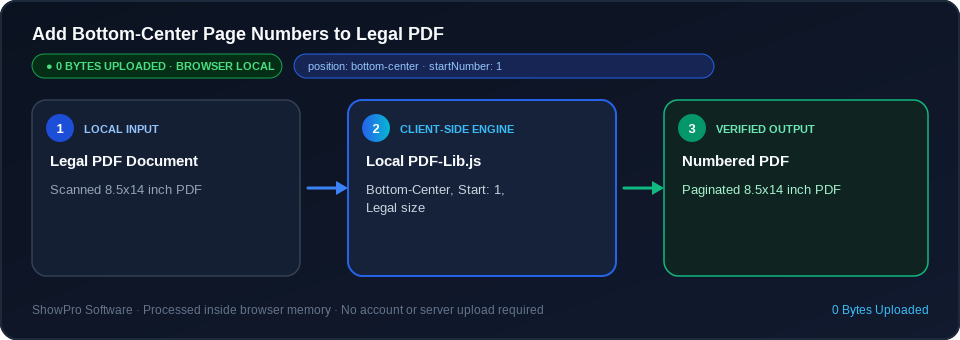
This tool precisely adds bottom-center page numbers to your Legal-sized PDF documents, starting from page 1. It's pre-configured for a 'bottom-center' position, ensuring consistent placement without manual adjustments. All processing occurs directly in your browser, guaranteeing your sensitive legal documents remain private with zero uploads.
Workflow Checklist
- Confirm original PDF is exactly 8.5 x 14 inches (Legal size) before processing.
- Verify the first and last page numbers are present and readable in the downloaded PDF.
- Check for any text overlap at the bottom-center on at least 3 random pages.
- Ensure the file size of the output PDF remains within any specific submission limits (e.g., 25MB for some portals).
Parent Tool & Hub
Step-by-Step Guide: Add Bottom-Center Page Numbers to Legal PDF
Follow these exact steps to complete this workflow locally in your browser without uploading files.
- 1
Select Legal PDF Document
Click the 'Choose File' button to browse your local file system. Navigate to your Legal-sized PDF document (e.g., 'Contract_Draft.pdf' or 'Exhibit_A.pdf') and select it. No files are ever uploaded.
Tip: Ensure your PDF is indeed Legal (8.5 x 14 inches) for optimal page number alignment. - 2
Verify Preset Configuration
Observe that 'Position: Bottom-Center' and 'Start Number: 1' are pre-selected. These settings are locked for this specific tool, ensuring consistent, standard legal document formatting.
Tip: No need to adjust anything; the tool is already optimized for this specific page numbering task. - 3
Review Page Number Preview
After your PDF loads, a preview will display the bottom-center page numbers. Scrutinize the first few pages to confirm placement and readability before processing the entire document.
Tip: Zoom in on critical pages to verify the numbers don't obstruct existing text or footers. - 4
Initiate Local Processing
Click the 'Add Page Numbers' button. The tool will process your entire Legal PDF locally using pdf-lib in your browser. This is extremely fast and secure.
Tip: For very large PDFs, processing might take a few extra seconds, but your browser won't freeze. - 5
Download Numbered PDF
Once processing completes, a 'Download Numbered PDF' button will appear. Click it to save your newly paginated Legal document to your local downloads folder.
Tip: Rename the downloaded file immediately (e.g., 'Contract_Numbered.pdf') to avoid overwriting the original.
Technical Specifications & Preset Reference
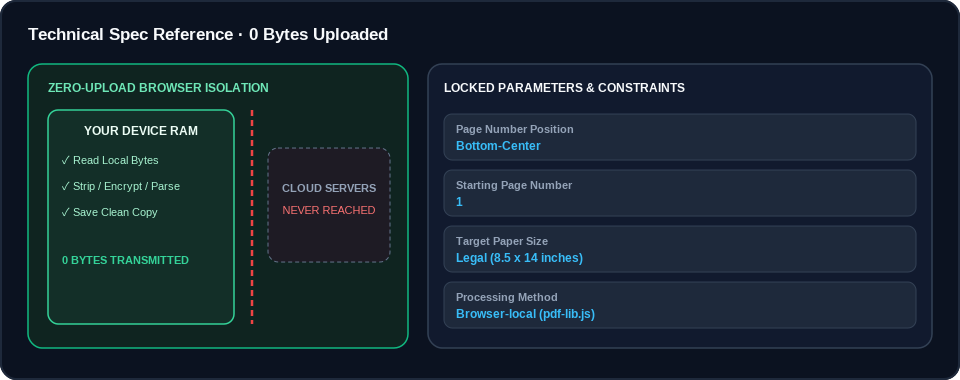
| Parameter | Recommended Setting | Why It Matters |
|---|---|---|
| Page Number Position | Bottom-Center | Ensures standard, consistent page numbering placement, crucial for formal legal document presentation and review. |
| Starting Page Number | 1 | Standardizes numbering from the first page, avoiding confusion common in multi-part legal submissions or exhibits. |
| Target Paper Size | Legal (8.5 x 14 inches) | Guarantees page number alignment is optimized for Legal dimensions, preventing cutoff or misplacement on longer pages. |
| Processing Method | Browser-local (pdf-lib.js) | Your sensitive legal documents never leave your device, ensuring maximum privacy and compliance with data handling policies. |
| Output File Type | PDF (Standardized) | Maintains universal compatibility and print fidelity, essential for court filings, client submissions, and archival purposes. |
Common Issues & Troubleshooting Fixes
Page numbers appear misaligned or cut off on output.
Confirm your input PDF is precisely Legal size (8.5"x14"). If it's Letter (8.5"x11") or A4, use a different tool preset for those dimensions.
Existing footers or text are overwritten by page numbers.
Check your original PDF for content too close to the bottom-center margin. Adjust your document's footer margins in your word processor before converting to PDF.
USCIS or court portal rejects the numbered PDF.
Verify the portal's specific PDF version requirements (e.g., PDF/A). While our tool outputs standard PDF, some portals are very strict. Check their guidelines.
Numbers don't start from 1, or skip pages.
This tool is hardcoded to start at 1. If you need different numbering, use the main 'Add Page Numbers' tool to customize starting page and page ranges.
Why Run This Workflow Locally in ShowPro?
Processing Legal PDFs with bottom-center page numbers locally in your browser offers unmatched privacy for sensitive documents. Unlike remote upload sites, your legal briefs, contracts, or exhibits never touch external servers. This eliminates data breach risks and ensures compliance with strict confidentiality rules, making it ideal for legal professionals needing secure, immediate results without account creation or data retention concerns.
Frequently Asked Questions
Can I change the font or size of the page numbers?
This specific tool preset uses a default, readable font and size optimized for legal documents. For advanced customization of font, size, or color, please use the main 'Add Page Numbers' tool.
What if my Legal PDF has blank pages? Will they be numbered?
Yes, this tool will sequentially number all pages in your PDF, including blank ones, starting from 1. If you need to skip numbering on specific blank pages, use the full 'Add Page Numbers' tool.
Is there a limit to the number of pages or file size?
Since processing is browser-local, limits are primarily dictated by your device's RAM and CPU. Most modern browsers can handle PDFs with hundreds of pages and sizes up to 200-300MB efficiently.
Will this tool work on scanned Legal documents?
Yes, as long as your scanned document is saved as a standard PDF, this tool will add page numbers. The numbers will overlay the scanned image at the bottom-center position.
Can I add 'Page X of Y' numbering instead?
This tool is pre-configured for simple sequential numbering (1, 2, 3...). For 'Page X of Y' formatting, navigate to our comprehensive 'Add Page Numbers' tool, which offers that specific option.