Compress Sensitive Mortgage & Bank PDFs Locally
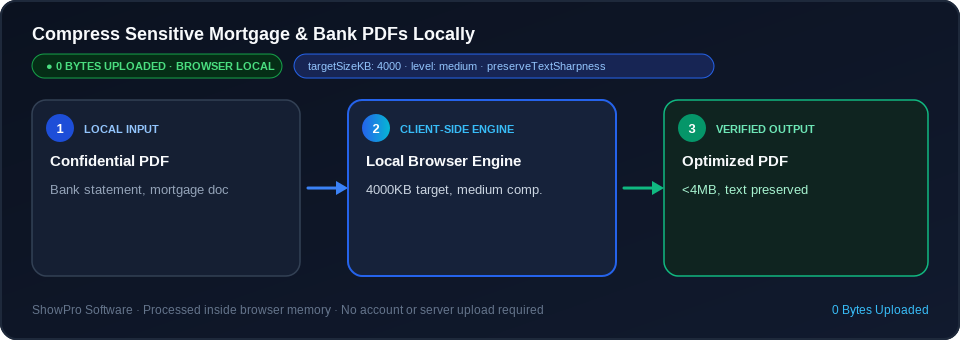
This tool helps you compress sensitive mortgage and bank PDFs to meet strict upload limits, typically 4MB, without ever uploading your private financial data. Pre-configured with a 4000KB target, 'medium' compression, and text sharpness preservation, all processing occurs securely in your browser.
Workflow Checklist
- Verify the compressed PDF is under 4.0 MB (e.g., 3.8 MB).
- Open the compressed PDF to confirm all text, especially account numbers, is sharp and readable.
- Check that all pages are present and correctly oriented.
- Ensure the file name is appropriate for upload (e.g., 'JohnDoe_MortgageStatement_2023.pdf').
Parent Tool & Hub
Step-by-Step Guide: Compress Sensitive Mortgage & Bank PDFs Locally
Follow these exact steps to complete this workflow locally in your browser without uploading files.
- 1
Gather PDF Bank Statements
Locate your bank statements or mortgage documents. Ensure they are in PDF format. If you have physical documents, scan them to PDF at a reasonable resolution (e.g., 300 DPI) using your printer or a scanning app.
Tip: Consolidate multiple PDFs into one document beforehand if the portal only allows a single file upload. - 2
Drag & Drop Your PDF
Drag your sensitive PDF file directly from your desktop (Windows Explorer, macOS Finder) onto the designated 'Drop PDF Here' area on this page. Alternatively, click the 'Browse Files' button to select it.
Tip: Avoid renaming files mid-process; keep original names until final upload for easier tracking. - 3
Confirm Local Processing
Observe the progress bar. The compression engine (powered by pdf-lib.js) runs entirely within your browser's memory. No data leaves your computer, ensuring privacy for your bank details.
Tip: For extremely large PDFs (>100MB), a modern browser like Chrome or Firefox is recommended for optimal performance. - 4
Download Compressed PDF
Once processing completes, a 'Download Compressed PDF' button will appear. Click it to save the optimized file directly to your default downloads folder (e.g., `~/Downloads`).
Tip: Verify the downloaded file's name matches your original, often with '_compressed' appended for clarity. - 5
Verify File Size & Upload
Before uploading to your bank or mortgage portal, check the compressed PDF's size in your file explorer. Right-click (Windows) or Cmd+I (macOS) on the file. Confirm it's below the 4MB (4000KB) limit.
Tip: If still too large, re-process with 'high' compression, but always check readability after.
Technical Specifications & Preset Reference
| Parameter | Recommended Setting | Why It Matters |
|---|---|---|
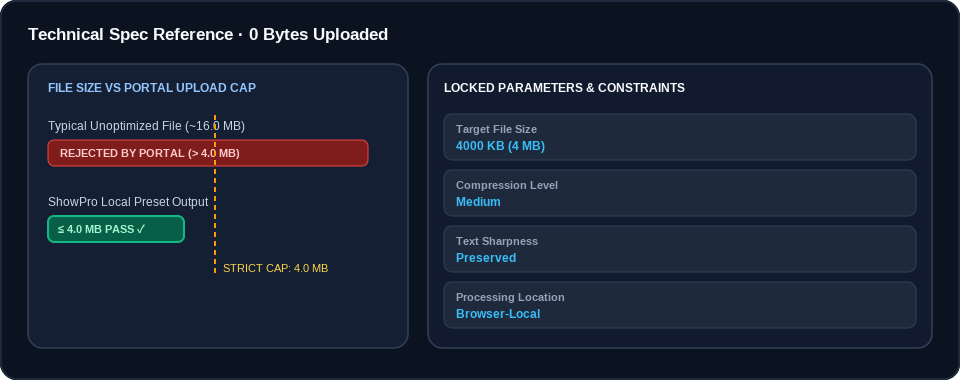
| Target File Size | 4000 KB (4 MB) | This preset value directly addresses common bank and mortgage portal upload caps, preventing 'file too large' errors. |
| Compression Level | Medium | Balances file size reduction with document clarity, crucial for preserving text and numbers in financial statements. |
| Text Sharpness | Preserved | Ensures account numbers, dates, and other vital text remain crisp and legible, avoiding rejection by OCR systems or human reviewers. |
| Processing Location | Browser-Local | Guarantees zero bytes of your sensitive mortgage or bank data are ever transmitted to any server, upholding strict privacy. |
| Max Input File Size | Limited by Browser Memory | While local, extremely large PDFs (e.g., >200MB) can strain browser resources; splitting them first is advisable. |
Common Issues & Troubleshooting Fixes
Bank portal rejects PDF due to excessive file size (e.g., >4MB).
Use this tool with the 4000KB target. If still too large, try the 'High' compression preset, then visually inspect the PDF for legibility.
Scanned PDF text becomes blurry or illegible after compression.
This tool's 'Preserve Text Sharpness' setting actively minimizes text degradation. If issues persist, ensure your initial scan is at least 300 DPI.
Upload portal reports 'corrupt file' or 'invalid PDF format'.
Although rare with this tool, try opening the compressed PDF in a native viewer (e.g., Adobe Acrobat Reader, Mac Preview) to confirm integrity before uploading. If it opens, the issue might be portal-specific.
Multiple bank statements need to be combined but the portal only accepts one file.
Before using this compressor, use a separate 'Merge PDF' tool (also local on ShowPro Software) to combine your individual statements into a single document, then compress that combined file here.
Why Run This Workflow Locally in ShowPro?
Unlike cloud-based PDF compressors that require uploading your highly sensitive financial documents to a remote server, ShowPro's tool processes everything directly in your browser. This means 0 bytes of your bank statements, mortgage applications, or tax documents ever leave your device, providing unparalleled privacy and security specifically for this type of confidential data.
Frequently Asked Questions
Is my bank statement data truly safe and not uploaded?
Absolutely. This tool uses client-side JavaScript (pdf-lib.js) to perform all compression locally within your browser. Your sensitive financial data never leaves your device and is never transmitted to any server.
What if the compressed PDF is still too large for my bank's portal?
First, try re-processing with the 'High' compression preset. If it's still over 4MB, consider if your original PDF contains many high-resolution images. You might need to split the document or contact your bank for alternative submission methods.
Will compressing my mortgage documents make them unreadable?
This tool is pre-configured to 'Preserve Text Sharpness' and uses 'Medium' compression to minimize quality loss. While some image quality reduction is inevitable, text and critical data should remain highly legible.
Can I compress multiple bank statements at once?
This tool processes one PDF at a time. If you have multiple statements that need to be combined into a single file for upload, use a PDF merge tool first, then compress the combined document here.
Does this tool work on all operating systems and browsers?
Yes, as long as you have a modern web browser (Chrome, Firefox, Edge, Safari), this tool will run. It's OS-agnostic, working equally well on Windows, macOS, Linux, and even mobile browsers for smaller files.