Verify Downloaded Binary Matches Official Checksum
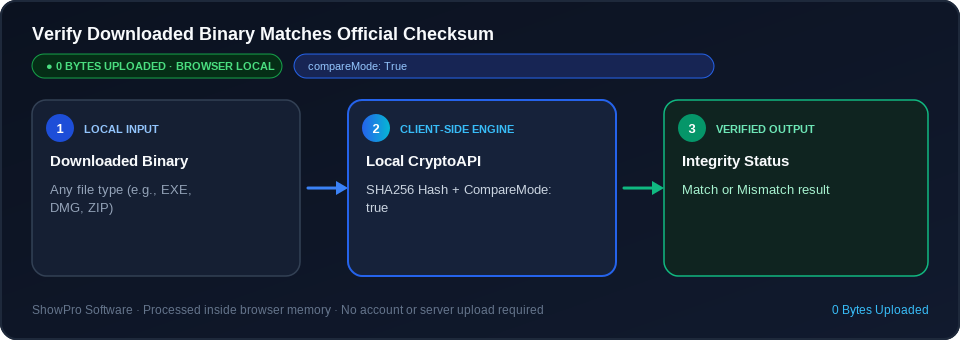
This tool helps verify the integrity of downloaded files by comparing their SHA256 hash against an official checksum, all directly within your browser. Crucially, your sensitive binaries or contracts never leave your device. The tool is pre-configured with `compareMode: true` for immediate hash verification.
Workflow Checklist
- Verify integrity of `.exe` installers from GitHub releases before running.
- Confirm downloaded `ISO` images for operating systems match official hashes.
- Check business critical `.zip` archives or encrypted `.7z` files for tampering.
- Validate firmware update `.bin` files for network devices to prevent bricking.
Parent Tool & Hub
Step-by-Step Guide: Verify Downloaded Binary Matches Official Checksum
Follow these exact steps to complete this workflow locally in your browser without uploading files.
- 1
Locate Official SHA256 Checksum
Find the official SHA256 checksum provided by the software vendor or download source. This is often on their download page, GitHub release, or in a `CHECKSUM.txt` file.
Tip: Always prioritize official sources; third-party sites can be compromised. - 2
Upload Your Downloaded File
Drag and drop your downloaded binary (e.g., `installer.exe`, `.dmg`, `.zip` archive) into the designated 'Your File' area. No file data is uploaded; processing occurs client-side.
Tip: Ensure you select the exact file you wish to verify, not a shortcut. - 3
Enter Official Hash for Comparison
Paste the official SHA256 hash you obtained in Step 1 into the 'Official Hash' input field. Double-check for typos or extra spaces.
Tip: Some vendors provide multiple hash types; ensure it's SHA256. - 4
Review Comparison Result
The tool will instantly compute your file's hash and compare it. A clear 'Match' or 'Mismatch' status will be displayed, indicating integrity.
Tip: A 'Mismatch' strongly suggests file corruption or tampering; do not proceed. - 5
Take Action on Result
If hashes match, your download is verified. If they mismatch, re-download the file from the official source or investigate potential tampering.
Tip: Consider using a different browser or network if repeated mismatches occur.
Technical Specifications & Preset Reference
| Parameter | Recommended Setting | Why It Matters |
|---|---|---|
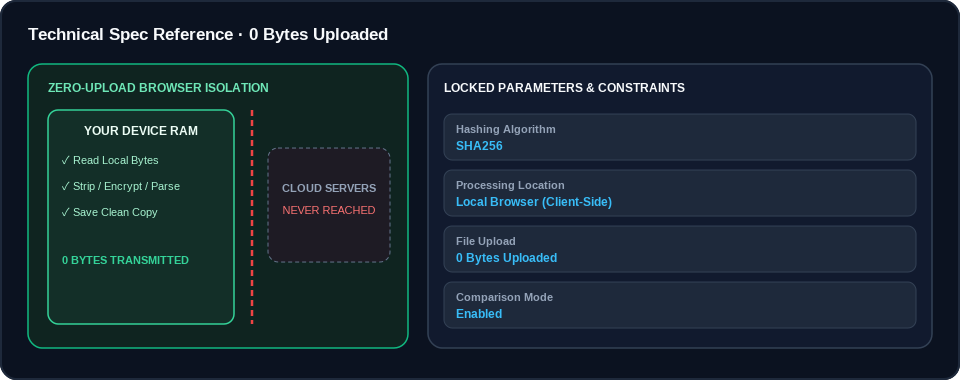
| Hashing Algorithm | SHA256 | SHA256 is the industry standard for cryptographic integrity checks, widely adopted for software distribution. |
| Processing Location | Local Browser (Client-Side) | Ensures sensitive binaries or proprietary files never leave your device, guaranteeing privacy and security. |
| File Upload | 0 Bytes Uploaded | Crucial for verifying sensitive business contracts or government forms without exposing them to external servers. |
| Comparison Mode | Enabled | This preset directly facilitates comparing your file's hash against a known, official checksum for verification. |
| Supported File Types | All Binary/Text Files | The SHA256 algorithm operates on raw byte data, making it universally applicable to any file type. |
Common Issues & Troubleshooting Fixes
Official hash provided is not SHA256 (e.g., MD5, SHA1)
Locate the correct SHA256 hash. If only other hashes are provided, use a different hash calculator tool that supports them or contact the vendor.
Pasting extra spaces or characters with the official hash
Carefully copy only the 64-character hexadecimal SHA256 string. Trim any leading/trailing spaces or hidden characters before pasting into the input field.
Comparing the wrong downloaded file or an incomplete download
Verify that the file you dragged into the tool is the exact, fully downloaded binary. Check its file size against official release notes.
Browser caching issues preventing accurate hash calculation
Clear your browser's cache and cookies, or try using an incognito/private browsing window to ensure a fresh, uncorrupted process.
Why Run This Workflow Locally in ShowPro?
Verifying downloaded file hashes locally in your browser offers unmatched security for sensitive data like business contracts or proprietary software. Unlike remote hash calculators that require uploading your entire file, this tool processes everything client-side. Your binary never leaves your machine, eliminating the risk of interception or data leakage common with server-side uploads, making it ideal for verifying critical software or documents.
Frequently Asked Questions
Why is SHA256 preferred over MD5 or SHA1 for verification?
SHA256 is cryptographically stronger than MD5 or SHA1, which have known vulnerabilities allowing for collision attacks. This means SHA256 provides a much higher assurance against malicious file tampering.
Can I verify large files, like operating system ISOs, with this tool?
Yes, this tool can handle large files. Since processing is local to your browser, the primary constraint is your system's available RAM and CPU, not an arbitrary server upload limit.
What if the official source provides multiple hashes, like for different architectures?
Always ensure you are comparing against the SHA256 hash specifically for the file architecture and version you downloaded. For example, `x64` versus `ARM` or `Windows` versus `macOS` versions.
Does this tool work offline after the initial page load?
Yes, once the page has fully loaded, you can disconnect from the internet. All file hashing and comparison operations occur entirely within your browser's local environment.
Why would my file hash mismatch if I downloaded it from an official source?
Mismatches can occur due to incomplete downloads, network errors during transfer, or, less commonly, server-side tampering. Always try re-downloading from the source if a mismatch occurs.