Diff Two Server Config Files Privately Offline
This tool precisely compares two `.htaccess` or `nginx.conf` files, highlighting differences without ever uploading your sensitive server configurations. Pre-configured for a 'side-by-side' view, it ensures your critical infrastructure details remain strictly on your machine, ideal for auditing changes or merging updates securely.
Workflow Checklist
- Verify `deny all;` or `allow` directives match production security policies.
- Confirm all `proxy_pass` or `fastcgi_pass` endpoints are correctly updated (e.g., `127.0.0.1:9000` to `unix:/var/run/php-fpm.sock`).
- Check for unexpected changes in `rewrite` rules or `return` codes (e.g., `301` vs `302`).
- Ensure `ssl_certificate` and `ssl_certificate_key` paths are correct for the target environment.
Parent Tool & Hub
Step-by-Step Guide: Diff Two Server Config Files Privately Offline
Follow these exact steps to complete this workflow locally in your browser without uploading files.
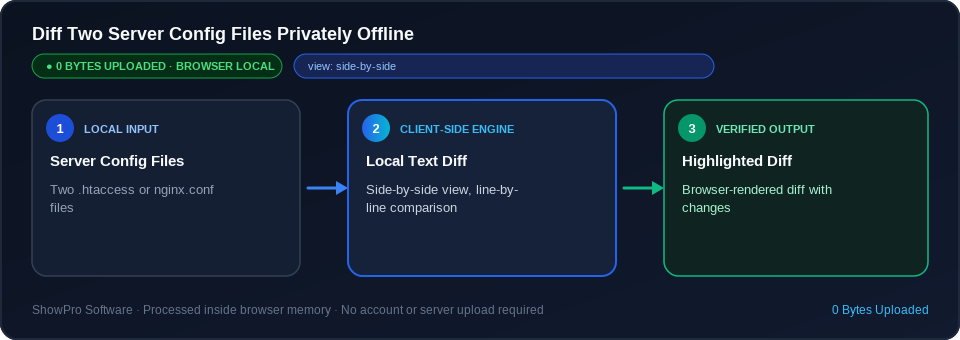
- 1
Open First Config File
Click 'Load File A' and navigate to your first `.htaccess` or `nginx.conf` file using Windows Explorer or macOS Finder. Select and open it.
Tip: Ensure files are UTF-8 encoded for best diff accuracy. - 2
Open Second Config File
Click 'Load File B' and select the second server configuration file you wish to compare. Both files load directly into your browser.
Tip: Name files descriptively, e.g., `nginx-prod.conf` vs `nginx-staging.conf`. - 3
Review Side-by-Side Differences
The tool automatically displays both files side-by-side with line-by-line differences highlighted. Red indicates deletions, green indicates additions.
Tip: Focus on critical directives like `deny all;` or `proxy_pass` changes. - 4
Navigate & Inspect Changes
Scroll through the files to review modifications. The synchronized scrolling keeps corresponding lines aligned for easier comparison of `location` blocks or `rewrite` rules.
Tip: Use your browser's 'Find' (Ctrl+F/Cmd+F) for specific directives. - 5
Export Diff Report (Optional)
If needed, use your browser's print function (Ctrl+P/Cmd+P) to 'Save as PDF' the diff view for offline review or sharing (remembering privacy).
Tip: Verify no sensitive data is visible before sharing PDF printouts.
Technical Specifications & Preset Reference
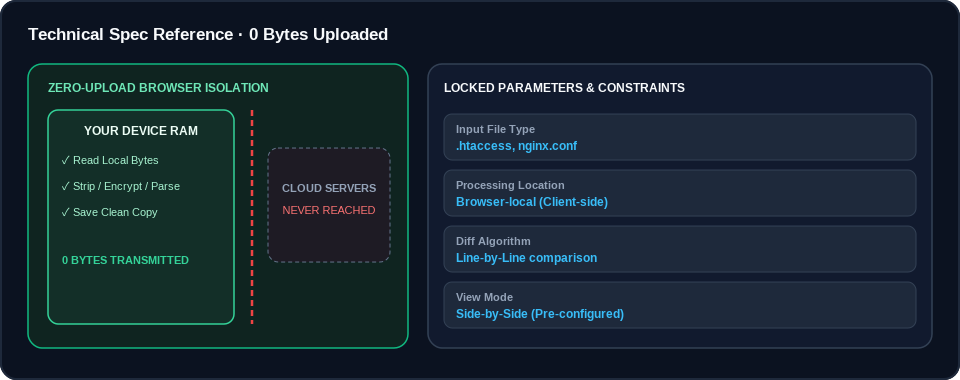
| Parameter | Recommended Setting | Why It Matters |
|---|---|---|
| Input File Type | .htaccess, nginx.conf | Optimized parsing and highlighting for these specific server configuration syntaxes ensures accurate diff results. |
| Processing Location | Browser-local (Client-side) | Guarantees that sensitive server configuration details never leave your device, ensuring maximum privacy and security. |
| Diff Algorithm | Line-by-Line comparison | Provides clear, granular insights into additions, deletions, and modifications of individual server directives. |
| View Mode | Side-by-Side (Pre-configured) | Facilitates direct visual comparison of corresponding lines across two distinct configuration files for quick auditing. |
| Data Upload | 0 Bytes Uploaded | Crucial for handling proprietary or security-sensitive server configurations without risk of data exposure. |
Common Issues & Troubleshooting Fixes
Files appear identical but you know they differ, or diff is messy.
Check for invisible characters (e.g., BOM, trailing spaces) or inconsistent line endings (CRLF vs LF). Use a text editor like VS Code to normalize and re-save before diffing.
Large files cause browser slowdown or memory warnings.
While optimized, extremely large config files (e.g., 50,000+ lines) can strain browser resources. Consider splitting into smaller modules if possible, or use a dedicated CLI diff tool.
Accidental upload to a cloud service after local diff.
Always double-check your sharing method. If you 'Save as PDF' from your browser, ensure that PDF is stored locally or shared only via secure, trusted channels, not public cloud drives.
Confusing diff output due to reordered blocks.
This tool performs a line-by-line diff. If entire blocks (e.g., `location /api {}`) are reordered, they will show as deletions and additions. Manually inspect for logical equivalence, not just positional.
Why Run This Workflow Locally in ShowPro?
For comparing sensitive server configurations like `.htaccess` or `nginx.conf`, browser-local processing is paramount. Unlike remote upload sites that transmit your entire file to a server, this tool keeps 0 bytes of your configuration data on your machine. This eliminates the risk of accidental data exposure or compliance breaches, ensuring your critical infrastructure details remain private and secure without relying on third-party server trust.
Frequently Asked Questions
Can I diff other text files besides server configs?
Yes, while optimized for server configs, this tool can diff any plain text file. The side-by-side view and highlighting work universally for code, logs, or prose, maintaining client-side privacy.
What if my files are very large? Will it crash?
The tool is optimized for typical config file sizes. Extremely large files (tens of thousands of lines) might consume more browser memory, but it's designed to handle substantial content without crashing for most users.
Is there a way to merge changes directly within the tool?
This tool is designed for viewing differences, not merging. After identifying changes, you'll need to manually apply them using a text editor or a version control system (like Git) for merging and commit management.
How do I know my files aren't being uploaded?
Your files are processed by JavaScript code running directly in your web browser. No network requests are made to upload your file content. You can verify this by checking your browser's network activity in developer tools.
Does this tool support syntax highlighting for config files?
While it highlights differences (red for deletions, green for additions), it does not provide full syntax highlighting for specific directives within `.htaccess` or `nginx.conf` files. The focus is purely on the diff.