Pack Multiple Photos & PDFs Into One ZIP Locally
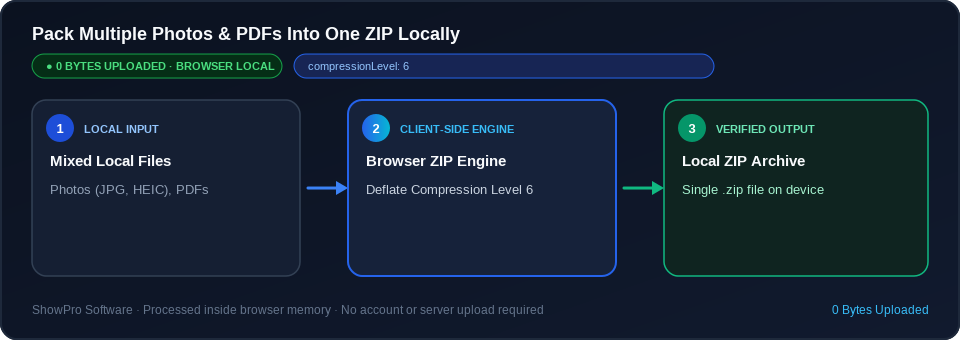
Consolidate multiple photos and PDFs into a single, highly compressed ZIP archive directly in your browser. This tool is pre-configured with a compression level of 6 (Default Deflate), ensuring a balance between file size reduction and broad compatibility, all without uploading a single byte of your sensitive documents.
Workflow Checklist
- Verify the final ZIP file size is under 25MB for typical email attachments.
- Confirm all critical PDF invoices and JPEG receipts are present inside the downloaded ZIP.
- Ensure no password-protected PDFs are included if the recipient lacks the password.
- Double-check that image orientation (e.g., portrait/landscape) is correct inside the archive.
Parent Tool & Hub
Step-by-Step Guide: Pack Multiple Photos & PDFs Into One ZIP Locally
Follow these exact steps to complete this workflow locally in your browser without uploading files.
- 1
Gather Your Source Files
Collect all photos (JPEG, PNG, HEIC) and PDF documents you intend to archive. For iPhone HEIC files, ensure they are downloaded locally from iCloud Photos or transferred via AirDrop.
Tip: Rename files descriptively before zipping for easier organization within the archive. - 2
Add Files to ShowPro Interface
Drag-and-drop your selected photos and PDFs directly into the drop zone on this page. Alternatively, click 'Browse Files' and select them from your local storage via the file picker.
Tip: You can add files incrementally; the tool will queue them all for a single ZIP operation. - 3
Verify Included Documents
Review the list of files displayed in the interface to confirm all intended photos and PDFs are present. Remove any accidental additions using the 'X' icon next to each filename.
Tip: For large batches, quickly scroll through the list to spot any unexpected entries. - 4
Initiate Local ZIP Creation
Click the 'Create ZIP Archive' button. The browser-local engine will immediately begin compressing your files into a single ZIP, using Deflate compression level 6, without any server interaction.
Tip: Keep your browser tab active during processing for optimal performance, especially with many large files. - 5
Download Your ZIP Archive
Once processing is complete, a 'Download ZIP' button will appear. Click it to save the newly created ZIP file directly to your device's default downloads folder.
Tip: Verify the downloaded ZIP content by opening it with Windows Explorer or macOS Finder.
Technical Specifications & Preset Reference
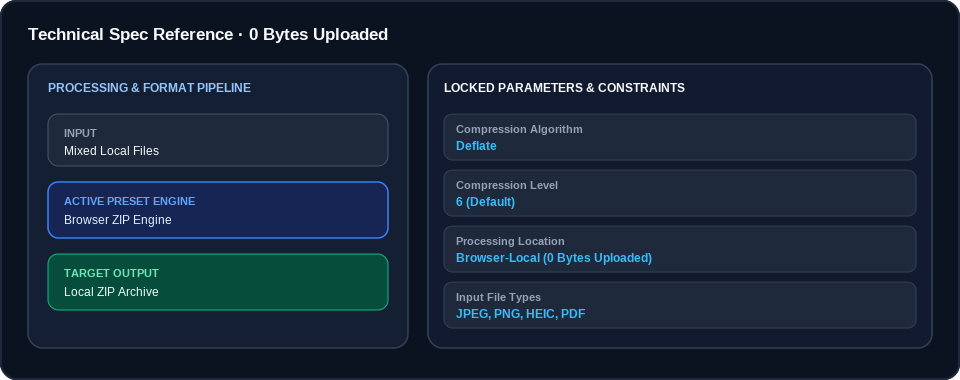
| Parameter | Recommended Setting | Why It Matters |
|---|---|---|
| Compression Algorithm | Deflate | Deflate is universally supported by all operating systems and archiving tools, ensuring maximum compatibility for your ZIP. |
| Compression Level | 6 (Default) | Level 6 offers a good balance between file size reduction and processing speed for mixed photo/PDF content. |
| Processing Location | Browser-Local (0 Bytes Uploaded) | All your photos and PDFs remain on your device, guaranteeing privacy and compliance for sensitive data like contracts. |
| Input File Types | JPEG, PNG, HEIC, PDF | This broad support covers common image and document formats, ideal for business and personal archiving needs. |
| Max Individual File Size | Limited by Browser Memory | For very large individual files (e.g., 500MB+ PDFs), browser memory can be a constraint; split if necessary. |
Common Issues & Troubleshooting Fixes
ZIP archive appears empty or corrupt after download.
Ensure all files were fully loaded into the tool before clicking 'Create ZIP.' Check browser console for errors during processing, often due to very large input files exceeding memory.
Specific images (e.g., HEIC) fail to process or appear corrupted inside the ZIP.
Confirm HEIC files are locally accessible and not still referencing iCloud. If issues persist, convert HEIC to JPG first using ShowPro's HEIC Converter tool then re-zip.
ZIP file size is unexpectedly large despite compression.
Compression effectiveness varies; highly compressed JPEGs or PDFs might not reduce much further. For maximum reduction, use ShowPro's dedicated image/PDF compressors beforehand.
Portal (e.g., USCIS, Discord) rejects the ZIP due to file count or total size.
Check the portal's specific limits. If necessary, split your archive into multiple smaller ZIPs, each adhering to the platform's file count or size restrictions.
Why Run This Workflow Locally in ShowPro?
Unlike cloud-based ZIP creators that require uploading all your photos and sensitive PDFs, ShowPro performs all compression locally within your browser. This means your business contracts, personal photos, and financial documents never leave your machine, providing unparalleled privacy and security for archiving, especially for compliance-sensitive data.
Frequently Asked Questions
Can I add files from cloud storage like Google Drive or Dropbox?
Yes, but you must first download them to your local device. This tool operates exclusively on files stored on your computer, ensuring zero upload to any server.
What happens if my browser crashes during the ZIP creation process?
If your browser crashes, the process will stop, and no ZIP file will be generated. Since processing is local, simply refresh the page and re-add your files to restart.
Is there a limit to how many files I can add to one ZIP archive?
The primary limit is your browser's available memory. For practical purposes, hundreds of small to medium-sized files are generally fine, but thousands might cause performance issues.
Will this tool preserve the original file names and folder structure?
Original file names are preserved. However, this tool creates a flat ZIP archive without replicating source folder structures. All files will be at the root of the ZIP.
Can I password-protect the ZIP file created by this tool?
No, this tool focuses solely on creating a standard Deflate-compressed ZIP archive. For password protection, you'll need to use your operating system's built-in archiving utilities after download.