Combine Receipt JPG Photos Into One PDF Locally
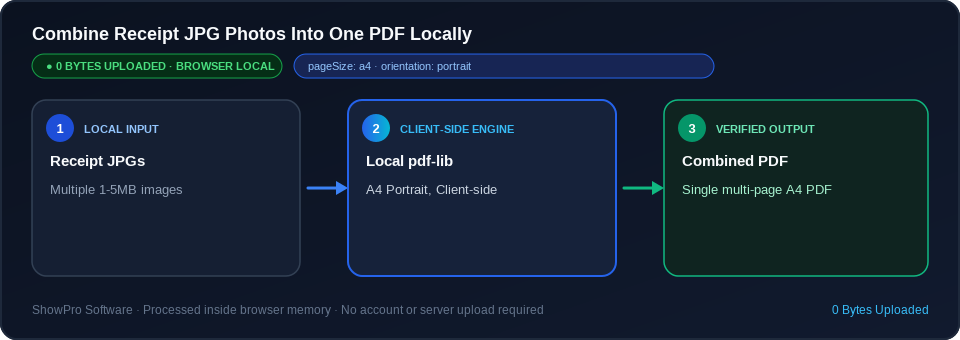
Consolidate multiple receipt JPG photos into a single, organized PDF entirely within your browser. This tool is pre-configured for A4 portrait pages, ideal for standard expense reporting. Your sensitive financial data remains private as zero bytes of your receipt images are ever uploaded to any server.
Workflow Checklist
- Verify all individual receipt JPGs are clearly legible before upload.
- Confirm the final PDF page count matches your total number of receipt JPGs.
- Check PDF file size against your expense reporting system's upload limits (e.g., <=10MB).
- Ensure chronological order of receipts is maintained for audit trail purposes.
Parent Tool & Hub
Step-by-Step Guide: Combine Receipt JPG Photos Into One PDF Locally
Follow these exact steps to complete this workflow locally in your browser without uploading files.
- 1
Select Your Receipt JPGs
Click 'Choose Files' and select all your receipt JPG images from your local drive. On iPhone, use the 'Files' app to gather photos from 'Recents' or 'Camera Roll' into a single folder for easy selection.
Tip: Rename files chronologically (e.g., '2023-10-26_lunch.jpg') for automatic PDF ordering. - 2
Arrange Pages in Order
Once loaded, drag and drop the receipt image thumbnails in the preview area to ensure they appear in the correct sequence within your final PDF document. This is crucial for chronological expense reports.
Tip: For large sets, sort by filename in your OS before uploading to minimize reordering in-browser. - 3
Verify A4 Portrait Layout
Confirm the 'A4' page size and 'Portrait' orientation settings are active. This preset ensures each receipt occupies a full, vertically aligned A4 page, suitable for most accounting software imports.
Tip: Rotate individual receipts within the tool if they appear sideways; the A4 portrait canvas will adapt. - 4
Initiate Local PDF Conversion
Click 'Combine to PDF'. The browser's `pdf-lib` library will process your selected JPGs into a single PDF document entirely on your device, leveraging HTML5 Canvas for rendering.
Tip: Keep your browser tab active during conversion; navigating away may pause or reset the process. - 5
Download Your Combined PDF
After processing, a 'Download PDF' button will appear. Click it to save your combined receipt PDF directly to your 'Downloads' folder. No cloud storage or account is ever involved.
Tip: Check the PDF in your OS viewer (e.g., Mac Preview, Adobe Reader) to ensure all pages are present and legible.
Technical Specifications & Preset Reference
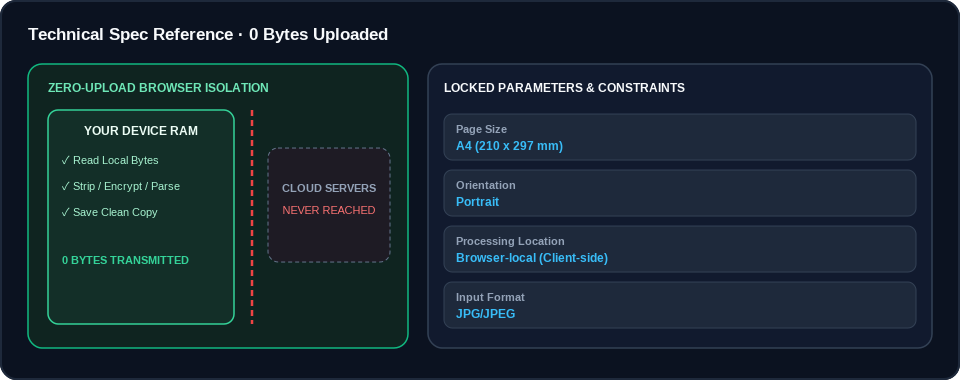
| Parameter | Recommended Setting | Why It Matters |
|---|---|---|
| Page Size | A4 (210 x 297 mm) | Standard for most business documents and expense reporting systems, ensuring compatibility with print and digital archives. |
| Orientation | Portrait | Optimizes vertical space for typical tall receipt formats, minimizing blank areas and improving readability per page. |
| Processing Location | Browser-local (Client-side) | Guarantees zero data upload, safeguarding sensitive financial receipt information from third-party servers. |
| Input Format | JPG/JPEG | Ubiquitous format for smartphone camera photos, ensuring broad compatibility with receipt images captured on any device. |
| Output Format | PDF (Portable Document Format) | Universal for document sharing and archiving, maintaining layout and content integrity across different platforms and viewers. |
Common Issues & Troubleshooting Fixes
Receipt text appears too small or blurry in the PDF.
Ensure original JPGs are high resolution. If not, re-scan or re-photograph receipts with better lighting and focus. This tool cannot enhance original image quality.
PDF pages are out of order for expense submission.
Before clicking 'Combine to PDF', drag and drop the individual receipt thumbnails in the preview pane into the exact chronological order required for your report.
Single receipt image spans across two A4 pages.
This occurs if a JPG is exceptionally wide. Rotate the image to portrait within the tool if needed, or crop excessive blank space from the original JPG before uploading.
PDF file size is excessively large, exceeding portal limits (e.g., 5MB for some expense systems).
If original JPGs are very high resolution, consider using a separate 'Compress JPG' tool (like ShowPro's) on each receipt *before* combining them here. This tool prioritizes quality over aggressive compression.
Why Run This Workflow Locally in ShowPro?
Unlike cloud-based services that demand you upload sensitive financial receipts to their servers, ShowPro processes all your JPGs into a PDF directly in your browser. This client-side approach, utilizing `pdf-lib` and HTML5 Canvas, guarantees your expense data never leaves your device, providing unparalleled privacy for your personal or business finances.
Frequently Asked Questions
Can I combine HEIC photos from my iPhone directly?
No, this tool specifically processes JPGs. Convert your iPhone HEIC photos to JPG first (e.g., using ShowPro's HEIC to JPG tool, or by sharing them as JPG from the Photos app) before combining them here.
What happens if my receipt JPGs are in landscape orientation?
The tool will place landscape JPGs onto an A4 portrait page, potentially leaving significant blank space above and below. You can rotate individual images within the tool to fit the portrait canvas better before combining.
Is there a limit to how many JPGs I can combine?
The limit is primarily constrained by your browser's memory and CPU. For typical receipt sizes (1-5MB each), combining 50-100 JPGs is generally feasible. Extremely large numbers might cause performance issues.
Can I add text or annotations to the PDF before downloading?
This specific tool focuses solely on combining images into a PDF. It does not offer editing or annotation functionalities. For such needs, export the PDF and use a dedicated PDF editor like Mac Preview or Adobe Acrobat.
Does this tool compress my receipt JPGs when creating the PDF?
The tool aims to embed your JPGs into the PDF while maintaining their original quality. It performs minimal, lossless compression on the PDF structure itself, but does not aggressively re-compress the image data within the PDF. For file size reduction, compress JPGs beforehand.