Place Two Pages Side-by-Side (2-Up) in One PDF
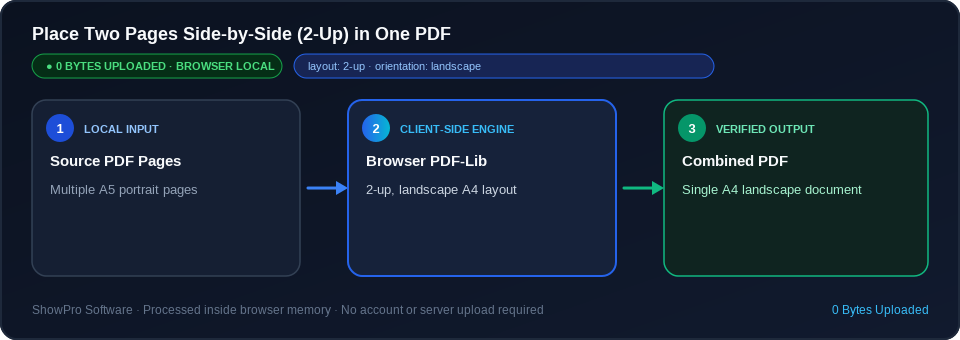
This tool streamlines combining two individual PDF pages onto a single A4 landscape sheet, perfect for creating study guides or print-ready booklets. It's pre-configured for a '2-up' layout with 'landscape' orientation, ensuring your documents are processed instantly and privately right in your browser, with zero uploads.
Workflow Checklist
- Verify the output A4 PDF is exactly 210 x 297 mm.
- Confirm each A4 page contains two original pages side-by-side.
- Check that text is legible and not overlapping on the combined pages.
- Ensure the final document size is suitable for email attachments (e.g., under 10MB).
Parent Tool & Hub
Step-by-Step Guide: Place Two Pages Side-by-Side (2-Up) in One PDF
Follow these exact steps to complete this workflow locally in your browser without uploading files.
- 1
Select Your Source PDF
Click the 'Choose File' button to select the PDF containing the pages you wish to combine. Navigate to your document via Windows Explorer or macOS Finder.
Tip: Ensure your source PDF has an even number of pages for optimal 2-up pairing. - 2
Verify Page Preview
After selection, a preview of your PDF pages will appear. Confirm the order and content are correct before processing.
Tip: Use the built-in browser PDF viewer (Ctrl+O/Cmd+O) to pre-check page order. - 3
Initiate Local Processing
With your PDF loaded, the tool automatically applies the 2-up, landscape A4 layout using client-side JavaScript (pdf-lib).
Tip: Processing is instant; no 'uploading' progress bar will appear as files stay local. - 4
Download Combined PDF
Once processed, a 'Download Combined PDF' button will activate. Click it to save your new A4 landscape document.
Tip: The output file will be named 'ShowPro_Combined_2Up.pdf' by default. - 5
Review Output Document
Open the downloaded PDF in Adobe Acrobat Reader or Mac Preview to verify the two-page side-by-side layout on each A4 landscape sheet.
Tip: Check for correct page numbering and margin consistency on your combined pages.
Technical Specifications & Preset Reference
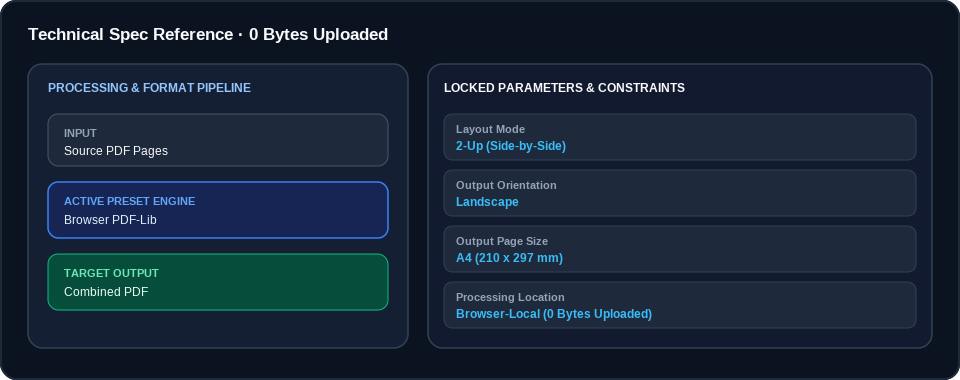
| Parameter | Recommended Setting | Why It Matters |
|---|---|---|
| Layout Mode | 2-Up (Side-by-Side) | This preset ensures two input pages are always placed adjacent on a single output sheet. |
| Output Orientation | Landscape | Optimizes horizontal space for two pages, ideal for A5-to-A4 conversions. |
| Output Page Size | A4 (210 x 297 mm) | Standard international print size, ensuring compatibility with most printers and portals. |
| Processing Location | Browser-Local (0 Bytes Uploaded) | Your sensitive documents never leave your device, ensuring maximum privacy and speed. |
| Input PDF Structure | Standard PDF/A-1b | Ensures broad compatibility with pdf-lib, handling most common PDF encodings and structures. |
Common Issues & Troubleshooting Fixes
Source PDF has an odd number of pages, resulting in a blank final page.
Use a PDF editor like Adobe Acrobat to insert a blank page at the end of your source PDF before processing with ShowPro.
Text or images are cut off at the edges of the combined A4 page.
Ensure your original A5 pages have sufficient margins. This tool combines, it doesn't rescale content to fit within new boundaries.
Generated PDF fails to open in older PDF readers or specific government portals (e.g., USCIS).
Try opening the output PDF in a modern browser (Chrome/Edge/Firefox) or update your PDF reader. ShowPro uses modern PDF-lib standards.
Output PDF file size is unexpectedly large after combining.
The tool doesn't recompress existing images. If your source PDF contains high-resolution scans, consider optimizing them first with a separate tool.
Why Run This Workflow Locally in ShowPro?
Unlike cloud-based PDF tools that require uploading your entire document to a server, ShowPro's 'Place Two Pages Side-by-Side' processes PDFs entirely within your browser. This means zero bytes are ever uploaded, safeguarding sensitive information and ensuring instant results without network latency, a critical advantage for confidential reports or personal data.
Frequently Asked Questions
Can I adjust the margins between the two pages on the A4 sheet?
This preset provides a fixed optimal margin for standard A5 pages on an A4 landscape sheet. For custom margin control, use the full 'PDF 2-Up Layout' tool and adjust the 'Horizontal Gap' parameter manually.
What if my source pages are not A5? Will they still fit on A4 landscape?
The tool will place any two pages onto an A4 landscape canvas. If your source pages are larger than A5, they may be cropped or scaled down to fit, potentially losing detail. Optimal results are with A5 or smaller.
Is there a limit to the number of pages my input PDF can have?
While there's no hard page limit, very large PDFs (e.g., hundreds of pages) might take longer to process locally and consume more browser memory. Performance depends on your device's CPU and RAM, not internet speed.
Does this tool reorder pages if my PDF is out of sequence?
No, this tool processes pages in their existing order, taking pages 1 & 2, then 3 & 4, and so on. To reorder, use a separate PDF reordering tool before using this 2-up layout.
Can I combine pages from two different PDF files into one output?
This specific tool accepts a single input PDF and combines its internal pages. To merge pages from different PDFs, you would first need to combine them into one PDF using a 'Merge PDF' tool, then process it here.