Convert HEX Brand Colors to RGB & HSL for CSS
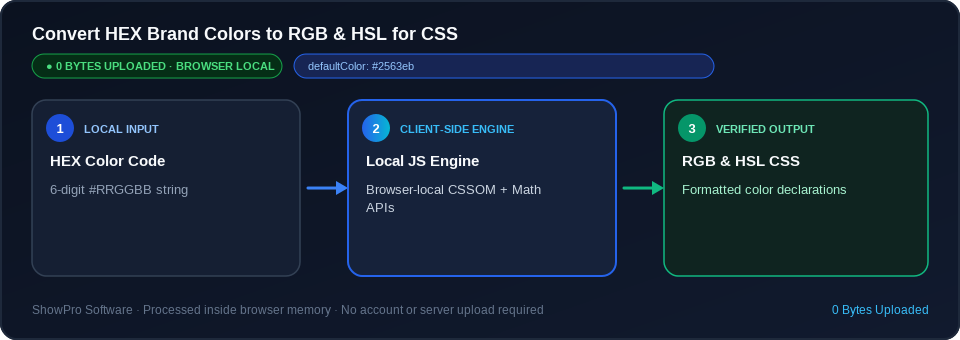
Front-end developers and designers often need to translate HEX color codes into RGB and HSL formats for consistent CSS styling. This tool solves the privacy concern of uploading proprietary brand colors by performing all conversions locally in your browser. The default color #2563eb is pre-loaded for immediate testing.
Workflow Checklist
- Verify RGB values are integers between 0-255.
- Confirm HSL saturation and lightness are expressed as percentages (0-100%).
- Check that copied CSS declarations include the function name (e.g., `rgb(...)`, `hsl(...)`).
- Ensure the converted color visually matches your original HEX in a browser developer console.
Parent Tool & Hub
Step-by-Step Guide: Convert HEX Brand Colors to RGB & HSL for CSS
Follow these exact steps to complete this workflow locally in your browser without uploading files.
- 1
Input Your HEX Color Code
Locate the 'HEX Color' input field. Enter or paste your specific six-digit (e.g., #RRGGBB) or three-digit (e.g., #RGB) hexadecimal color code into this box.
Tip: Ensure the '#' prefix is included for valid HEX parsing, though the tool often infers it. - 2
Observe Instant Local Conversion
As you type or paste, the tool instantly processes the HEX value using browser-local JavaScript. There's no 'submit' button because computation happens client-side.
Tip: Verify the RGB and HSL outputs update in real-time without any network requests. - 3
Copy Generated RGB Values
Find the 'RGB Output' section. Click the 'Copy' button next to the generated 'rgb(R, G, B)' string to quickly transfer it to your clipboard for CSS stylesheets.
Tip: Check for correct integer values between 0-255 for R, G, and B components. - 4
Copy Generated HSL Values
Locate the 'HSL Output' section. Click the 'Copy' button adjacent to the 'hsl(H, S%, L%)' string. This copies the HSL declaration ready for use in CSS.
Tip: Confirm HSL saturation and lightness are expressed as percentages (S%, L%). - 5
Integrate into CSS Stylesheets
Paste the copied RGB or HSL values directly into your CSS files. For example, use `color: rgb(37, 99, 235);` or `background-color: hsl(219, 89%, 53%);`.
Tip: Prefer HSL for easier color adjustments; RGB is often used for legacy support or specific brand guidelines.
Technical Specifications & Preset Reference
| Parameter | Recommended Setting | Why It Matters |
|---|---|---|
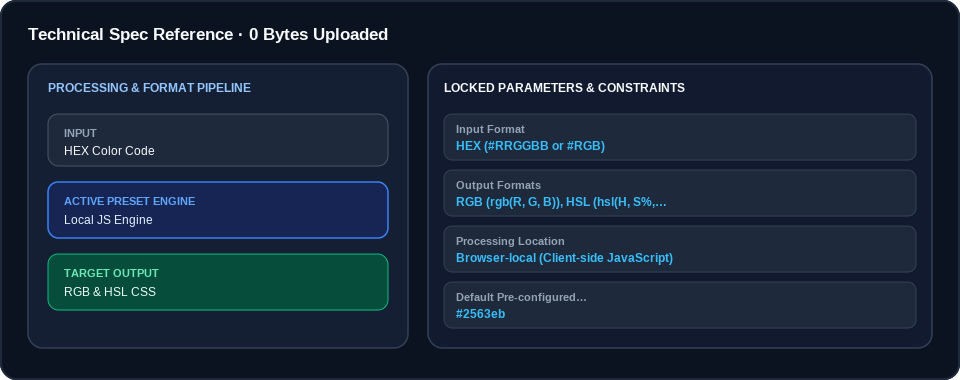
| Input Format | HEX (#RRGGBB or #RGB) | Ensures accurate parsing of standard web color notation for conversion logic. |
| Output Formats | RGB (rgb(R, G, B)), HSL (hsl(H, S%, L%)) | Provides widely supported CSS color models for diverse styling needs and browser compatibility. |
| Processing Location | Browser-local (Client-side JavaScript) | Guarantees zero data upload, protecting sensitive brand color palettes and design system tokens. |
| Default Pre-configured Color | #2563eb | Offers an immediate, tangible example for new users, illustrating the tool's functionality with a common brand blue. |
| Color Range | Standard sRGB gamut | Ensures conversions align with typical display capabilities and web standards for consistent visual representation. |
Common Issues & Troubleshooting Fixes
Invalid HEX code input (e.g., missing '#', wrong length, non-hex characters)
Double-check your HEX code for the '#' prefix and ensure it's exactly 3 or 6 valid hexadecimal characters (0-9, A-F). The tool provides no output for malformed input.
Copying only parts of the RGB/HSL string instead of the full CSS declaration
Always use the dedicated 'Copy' buttons next to the RGB and HSL output fields. This ensures the full `rgb(...)` or `hsl(...)` string is copied, including parentheses and commas.
Expecting CMYK or other print-specific color models
This tool specifically targets web development needs for CSS, converting HEX to RGB and HSL. For CMYK conversions, you would need a dedicated print-focused utility or design software like Adobe Illustrator.
Forgetting to paste the copied values into your actual CSS file
After copying, navigate to your `.css` or `<style>` block in your code editor and paste the `rgb()` or `hsl()` declaration where the color property is defined, e.g., `color: [pasted_value];`.
Why Run This Workflow Locally in ShowPro?
Unlike remote color converters that require uploading or transmitting your proprietary brand color HEX codes to a server, this ShowPro tool processes everything in your browser. This client-side approach ensures your design system's exact colors, like `#2563eb`, remain private and never leave your device, eliminating data transfer risks and account requirements for quick, secure conversions.
Frequently Asked Questions
Why is my HEX code not converting?
Ensure your HEX code starts with '#' and contains exactly 3 or 6 valid hexadecimal characters (0-9, A-F). Any deviation will prevent the browser's JavaScript from parsing it correctly.
Can I convert RGB or HSL back to HEX using this tool?
This specific tool is unidirectional, designed solely for converting HEX to RGB and HSL. For reverse conversions, please navigate to our main Color Format Converter page which supports multiple formats.
Is there a limit to how many conversions I can do?
No, since all processing occurs locally in your browser, there are no server-side limits. You can perform unlimited conversions as needed without any restrictions or rate limits.
How accurate are the HSL percentage outputs?
The HSL percentages are calculated with high precision using standard color space conversion algorithms within JavaScript. They are accurate for typical web development use and CSS specification requirements.
Does this tool work offline?
Once the page has loaded, the tool can perform conversions offline as all necessary JavaScript is loaded into your browser. No internet connection is required for the conversion logic itself.