Convert Specific Date & Time to Unix Timestamp
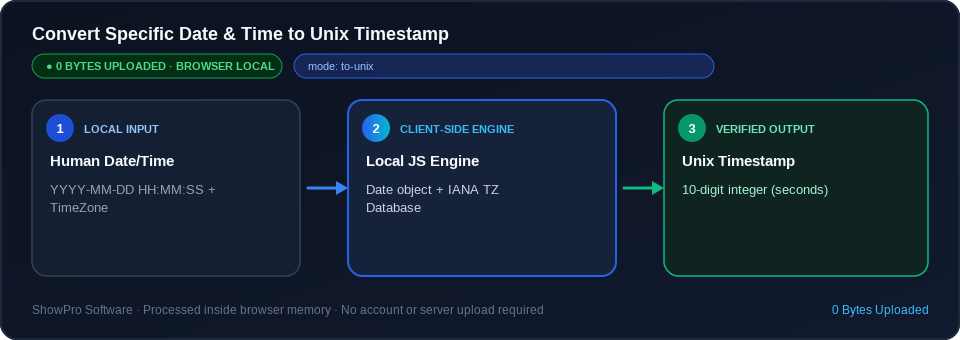
This utility instantly converts a human-readable date and time into a Unix epoch timestamp (seconds since January 1, 1970 UTC). Ideal for developers and system administrators requiring precise, browser-local conversion for log analysis, token generation, or configuration files without uploading sensitive time data to external servers. The tool is pre-configured for 'to-unix' mode.
Workflow Checklist
- Confirm generated timestamp is 10 digits long for seconds-based epoch.
- Verify the output matches your system's expected UTC time for the chosen date/time.
- Ensure time zone selection aligns with the original event's local time zone.
- Check that the timestamp accurately reflects AM/PM for 12-hour source times (if applicable).
Parent Tool & Hub
Step-by-Step Guide: Convert Specific Date & Time to Unix Timestamp
Follow these exact steps to complete this workflow locally in your browser without uploading files.
- 1
Input Your Specific Date
Enter the target date into the 'Date' field using a clear format like 'YYYY-MM-DD' (e.g., '2024-07-26'). This ensures accurate parsing across different browsers and locales.
Tip: Always use four digits for the year to avoid ambiguity with two-digit year interpretations. - 2
Specify the Exact Time
Input the precise time into the 'Time' field. Use 24-hour format (HH:MM:SS) for consistency (e.g., '14:30:00') to prevent AM/PM misinterpretations.
Tip: Include seconds (':00') even if not explicitly needed to ensure full time precision. - 3
Select Correct Time Zone
Choose the correct time zone from the dropdown menu. This is critical for accurate conversion, as the Unix timestamp is UTC-based. For example, 'America/New_York'.
Tip: If unsure, check your operating system's current time zone settings (e.g., Windows 'Date & Time settings'). - 4
Review the Output Timestamp
The generated Unix timestamp will appear instantly in the 'Unix Timestamp' output field. Verify it against known timestamps or expected values for the given date/time.
Tip: Double-check the length of the timestamp; it should be a 10-digit or 13-digit integer for seconds or milliseconds. - 5
Copy for Immediate Use
Click the 'Copy' button next to the output field to transfer the timestamp to your clipboard. Paste it directly into your application, script, or configuration file.
Tip: Paste into a plain text editor first (like Notepad) to strip any unintended rich text formatting.
Technical Specifications & Preset Reference
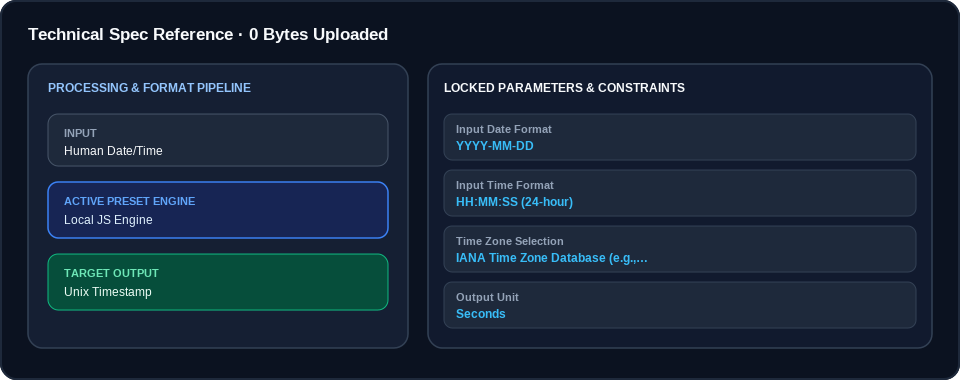
| Parameter | Recommended Setting | Why It Matters |
|---|---|---|
| Input Date Format | YYYY-MM-DD | Standardizes date parsing, preventing locale-specific interpretation errors common in 'MM/DD/YY' or 'DD-MM-YYYY' formats. |
| Input Time Format | HH:MM:SS (24-hour) | Eliminates ambiguity between AM/PM, ensuring precise time conversion, especially for automated systems that expect 24-hour clocks. |
| Time Zone Selection | IANA Time Zone Database (e.g., 'Europe/London') | Crucial for correct UTC offset calculation, as Unix timestamps are universally defined in Coordinated Universal Time (UTC). |
| Output Unit | Seconds | The standard Unix epoch timestamp is measured in seconds, widely used in APIs, databases, and system logs for consistency. |
| Processing Location | Browser-Local | Ensures zero data upload, safeguarding sensitive date/time information from third-party servers, critical for compliance and privacy. |
Common Issues & Troubleshooting Fixes
Incorrect time zone selection leading to an off-by-hours timestamp.
Always confirm the time zone matches the source date/time. Use a tool like time.is to verify your current local time zone and offset.
Missing seconds or milliseconds causing precision issues in system logs or API calls.
Ensure your input time includes '00' for seconds if not explicitly provided, or use a tool that specifically outputs milliseconds if required.
Using a date format like '1/2/2024' which can be interpreted as Jan 2nd or Feb 1st.
Strictly adhere to 'YYYY-MM-DD' for date input to remove any ambiguity, preventing incorrect date parsing errors.
DST (Daylight Saving Time) shifts causing an hour discrepancy in the timestamp.
The tool accounts for DST based on the selected IANA time zone. Verify the input date falls within or outside DST for that specific zone.
Why Run This Workflow Locally in ShowPro?
Unlike remote servers that require uploading your specific date and time details, this ShowPro utility processes everything locally in your browser. This is crucial for maintaining privacy when converting sensitive log timestamps or proprietary configuration dates. No data leaves your device, eliminating the risk of exposure and ensuring instant, secure results without account creation or network latency.
Frequently Asked Questions
Why is my generated Unix timestamp off by several hours?
This is almost always due to an incorrect time zone selection. Unix timestamps are UTC-based, so selecting the wrong local time zone will result in an offset. Double-check your chosen time zone against the original event's location.
Can I convert dates before January 1, 1970?
The standard Unix epoch begins on January 1, 1970, 00:00:00 UTC. Dates before this will result in a negative Unix timestamp, which some systems may not support. Confirm your target system's handling of negative timestamps.
Does this tool handle Daylight Saving Time (DST) changes?
Yes, the tool uses the selected IANA time zone database, which includes rules for Daylight Saving Time. As long as the correct time zone is chosen for your specific date, DST adjustments will be handled automatically.
Is my date and time information sent to a server?
No. All conversion processes occur entirely within your browser. Your date and time inputs are never uploaded to our servers, ensuring complete privacy and security for sensitive data.
What's the difference between a 10-digit and 13-digit Unix timestamp?
A 10-digit timestamp represents seconds since the epoch, which is the most common format. A 13-digit timestamp represents milliseconds since the epoch. This tool specifically outputs seconds (10-digit).