Convert Hex, Binary, Octal & Decimal Instantly
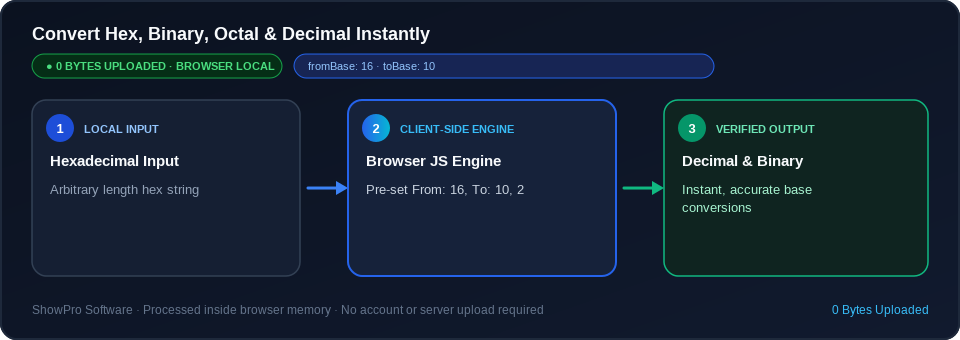
When debugging system logs, parsing proprietary config files, or developing low-level code, quickly converting hexadecimal values to their decimal and binary equivalents is crucial. This pre-configured ShowPro tool instantly translates your hex input into base 10 and base 2, all within your browser, ensuring sensitive data never leaves your device.
Workflow Checklist
- Confirm '0x' or 'h' prefixes are correctly ignored in the output.
- Verify binary output contains groups of four bits per hex digit (e.g., '1' becomes '0001').
- Check decimal output for exact integer match, especially for values like 'FF' (255) or '10' (16).
- Ensure copied values paste correctly into target environments (e.g., Python, C++, Excel).
Parent Tool & Hub
Step-by-Step Guide: Convert Hex, Binary, Octal & Decimal Instantly
Follow these exact steps to complete this workflow locally in your browser without uploading files.
- 1
Input Hexadecimal Value
Locate the 'Input' text area, pre-configured for Hexadecimal (Base 16). Paste or type your hex string, such as 'FF' or '1A3F', directly into this field.
Tip: Leading '0x' or trailing 'h' prefixes are automatically ignored for convenience. - 2
Verify Output Bases
Confirm the 'Output' section displays 'Decimal (Base 10)' and 'Binary (Base 2)'. This tool is preset for these specific conversions.
Tip: If needed, the parent Number Base Converter allows selecting other bases. - 3
Review Decimal Result
Observe the 'Decimal (Base 10)' output field. This will display the base-10 integer equivalent of your hexadecimal input, e.g., 'FF' becomes '255'.
Tip: Large hex values will result in correspondingly large decimal numbers. - 4
Examine Binary Representation
Check the 'Binary (Base 2)' output. Each hex character typically corresponds to four binary digits, e.g., 'A' is '1010'.
Tip: Binary outputs are often padded with leading zeros for consistent length (e.g., '0000' for '0'). - 5
Copy Converted Values
Click the 'Copy' button next to the Decimal or Binary output fields to quickly transfer the converted value to your clipboard for use in other applications.
Tip: Verify copied values in your target application like a code editor or spreadsheet.
Technical Specifications & Preset Reference
| Parameter | Recommended Setting | Why It Matters |
|---|---|---|
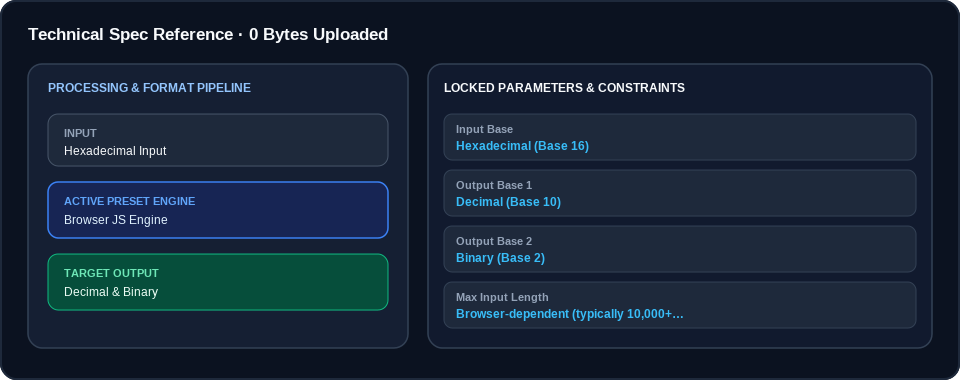
| Input Base | Hexadecimal (Base 16) | Ensures the tool correctly interprets your input as a base-16 number, crucial for accurate conversion of tokens and memory addresses. |
| Output Base 1 | Decimal (Base 10) | Provides a human-readable, common numerical representation vital for debugging and general calculation contexts. |
| Output Base 2 | Binary (Base 2) | Essential for understanding bit-level representations, especially when working with low-level hardware or network protocols. |
| Max Input Length | Browser-dependent (typically 10,000+ characters) | Supports conversion of very long hex strings, such as cryptographic keys or extensive log file entries, without truncation. |
| Processing Location | Browser-local (Client-side JavaScript) | Guarantees that sensitive hexadecimal data, like API keys or memory dumps, never leaves your machine, ensuring privacy and security. |
Common Issues & Troubleshooting Fixes
Inputting non-hexadecimal characters (e.g., 'G', 'Z', special symbols).
The tool will display an 'Invalid Hexadecimal Input' error. Review your input for characters outside '0-9' and 'A-F' (case-insensitive) and correct them.
Misinterpreting a decimal number as hexadecimal input.
If you intended to convert a decimal number, navigate to the parent /tools/number-base-converter and set 'From Base' to 'Decimal (Base 10)' before inputting.
Expecting octal output when only decimal and binary are shown.
This specific tool is pre-configured for Decimal and Binary output. For Octal, use the main 'Number Base Converter' and select 'Octal (Base 8)' as an output base.
Performance slowdown with extremely long hex strings (e.g., 100,000+ characters).
While optimized, browser limits apply. For massive conversions, consider breaking the input into smaller chunks or using a dedicated offline scripting tool.
Why Run This Workflow Locally in ShowPro?
Unlike server-side hexadecimal converters that require uploading your data, this ShowPro tool operates entirely within your browser. This client-side processing is critical for sensitive hexadecimal strings, such as proprietary system IDs, encryption keys, or log entries, ensuring zero bytes are ever transmitted over the network. Your data remains private and secure on your local machine.
Frequently Asked Questions
Can I convert from binary or decimal to hex using this tool?
This specific tool is preset for Hexadecimal input. To convert from Binary or Decimal, please use the main 'Number Base Converter' tool, where you can configure any 'From Base' and 'To Base' combination.
Is there a limit to the size of the hexadecimal string I can convert?
The practical limit is determined by your browser's memory and JavaScript engine, typically supporting thousands of characters. For most developer workflows, this is more than sufficient for logs or configuration values.
Why are there leading zeros in the binary output?
Leading zeros ensure each hexadecimal digit (which represents 4 bits) maintains its full 4-bit binary representation. For example, hex '1' is '0001' in binary, not just '1', which is important for bitwise operations.
Does this tool handle negative hexadecimal numbers?
No, this tool primarily handles unsigned hexadecimal integers. For signed number conversions (e.g., two's complement), you would typically need to interpret the binary output within your specific programming context or use a specialized signed converter.
Can I convert multiple hexadecimal strings at once?
Currently, the tool processes one hexadecimal string at a time. For batch conversions, you would need to paste and convert each string sequentially or use a scripting solution outside of this browser utility.