Merge PDFs Locally Without Installing Acrobat
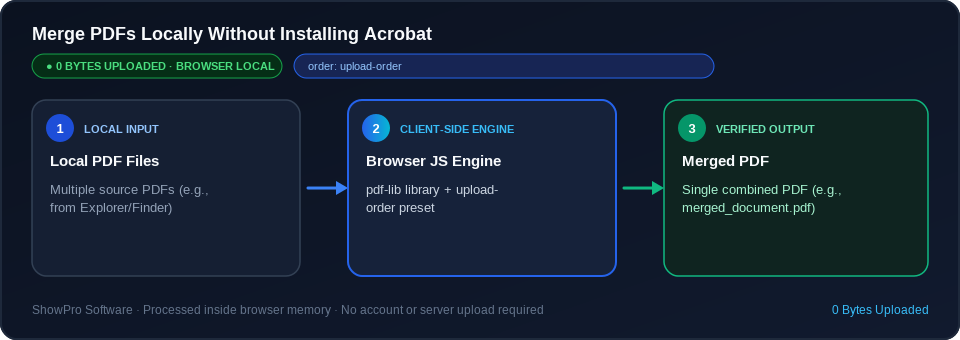
This tool merges multiple PDF files directly in your browser, eliminating the need for Adobe Acrobat or any cloud uploads. Your documents remain entirely on your device, ensuring maximum privacy. Files are combined in the order you upload them, perfect for quickly assembling multi-part applications or reports.
Workflow Checklist
- Verify final document page count matches sum of originals.
- Check for consistent page orientation (portrait/landscape) throughout the merged PDF.
- Ensure all form fields (if present) are still editable and not flattened.
- Confirm file size is below any target portal upload limits (e.g., 5MB for Discord, 20MB for GitHub).
Parent Tool & Hub
Step-by-Step Guide: Merge PDFs Locally Without Installing Acrobat
Follow these exact steps to complete this workflow locally in your browser without uploading files.
- 1
Select Your PDF Files
Click 'Add Files' and navigate to your PDFs. On Windows, hold Ctrl to select multiple files; on macOS, hold Cmd. You can also drag-and-drop files directly from your desktop or a Finder/Explorer window.
Tip: For consistent ordering, rename files with numerical prefixes (e.g., 01-PartA.pdf, 02-PartB.pdf) before uploading. - 2
Verify Upload Order
After adding, check the file list. PDFs are merged in the exact sequence they appear. If an order is incorrect, remove and re-add them in the desired sequence, or use the drag handles to reorder.
Tip: This tool respects 'upload-order' for combining, so visual confirmation here is crucial for final output integrity. - 3
Initiate Local Merge
Once satisfied with the file order, click the 'Merge PDFs' button. The entire merging process executes within your browser's JavaScript engine (using pdf-lib), with no data leaving your device.
Tip: Merging large PDFs might briefly increase browser CPU usage, but it’s a one-time local operation. - 4
Download Merged PDF
Upon completion, a 'Download Merged PDF' button will appear. Click it to save your new, combined PDF to your default downloads folder. The file name will be automatically generated as 'merged_document.pdf'.
Tip: If the download doesn't start, check your browser's pop-up blocker or download settings for showprosoftware.com. - 5
Review Output Locally
Open the downloaded 'merged_document.pdf' in your preferred local PDF viewer (e.g., Mac Preview, Adobe Reader, Chrome browser) to confirm page order and content integrity before submission or sharing.
Tip: Always perform a quick visual scan, especially for multi-page documents, to catch any unexpected formatting shifts.
Technical Specifications & Preset Reference
| Parameter | Recommended Setting | Why It Matters |
|---|---|---|
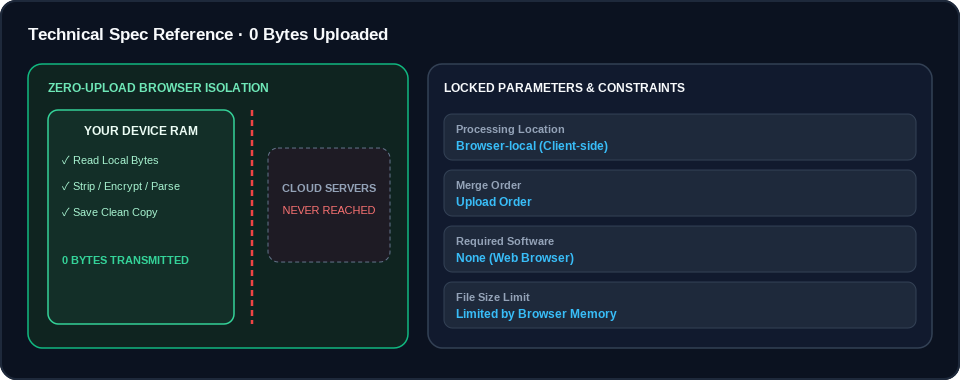
| Processing Location | Browser-local (Client-side) | Ensures 0 bytes of your sensitive PDF data are ever uploaded to any server, maintaining privacy. |
| Merge Order | Upload Order | Files are combined strictly in the sequence you add them, crucial for sequential reports or applications like DS-160. |
| Required Software | None (Web Browser) | Eliminates the need for costly subscriptions like Adobe Acrobat or installing any desktop applications. |
| File Size Limit | Limited by Browser Memory | While not a hard cap, extremely large PDFs (hundreds of MBs) may strain browser RAM, potentially slowing the process. |
| Internet Connection | Only for Page Load | After the page loads, the merge operation is fully offline, perfect for sensitive work on restricted networks. |
Common Issues & Troubleshooting Fixes
Incorrect page order in merged PDF.
This tool uses 'upload-order'. Ensure you drag-and-drop files or select them in the exact desired sequence. Reorder using the handles if needed before merging.
Merged PDF appears blank or corrupted.
This can happen with password-protected or encrypted PDFs. Decrypt them first using a local tool like Mac Preview's export function, then merge the unprotected versions.
Browser becomes unresponsive during merge.
Merging many large, complex PDFs can be memory intensive. Try merging smaller batches, or close other browser tabs/applications to free up RAM before processing.
PDFs with different page sizes combine awkwardly.
The tool will combine them, but the output will match the first PDF's page size or expand to fit. Pre-standardize page sizes (e.g., A4) if strict uniformity is required for portals like USCIS.
Why Run This Workflow Locally in ShowPro?
Unlike remote PDF merge services that require uploading your sensitive documents to their servers, ShowPro processes everything locally in your browser. This means your personal or confidential PDFs never leave your device, eliminating privacy risks and the need to trust third-party storage, making it ideal for government applications or financial reports.
Frequently Asked Questions
Can I merge password-protected PDFs?
No, this tool cannot decrypt password-protected PDFs. You must first remove any passwords from your PDFs using a local application like Mac Preview or a dedicated PDF editor before merging them here.
Is there a limit to how many PDFs I can merge?
The practical limit is determined by your browser's available memory. While there's no hard cap, merging hundreds of very large PDFs might cause performance issues. Test with a smaller batch first.
What if my PDFs have different orientations (portrait/landscape)?
The tool will combine them as-is. The resulting PDF will contain pages in their original orientations. If you need uniform orientation, rotate individual pages beforehand using a separate local PDF editor.
Does this tool modify my original PDF files?
Absolutely not. Your original PDF files remain untouched on your device. This tool only creates a new, merged PDF file for you to download, leaving your source documents intact.
Why is the file processing so fast compared to online tools?
Because the entire operation runs client-side using WebAssembly-optimized pdf-lib, there's no upload/download latency or server queue. This direct local processing is significantly faster for most users.