Combine Passport Photo Pages Into One PDF Offline
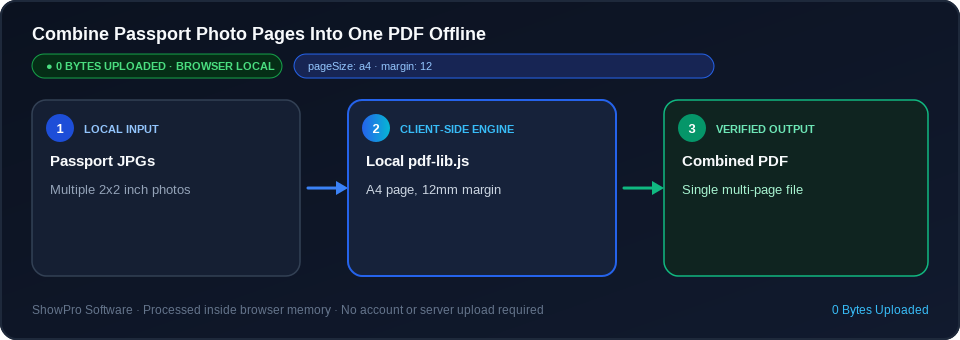
Effortlessly combine multiple JPG passport photo pages into a single, secure PDF, processed entirely offline in your browser. This tool is pre-configured with A4 page size and a 12mm margin, ideal for creating submission-ready documents without uploading sensitive identity information.
Workflow Checklist
- Verify each passport photo is exactly 2x2 inches (51x51 mm) or specified by your authority.
- Confirm the final PDF file size is within the target portal's limit (e.g., 300KB for DS-160, 500KB for some USCIS forms).
- Check all passport photos are correctly oriented (portrait) and free of rotation errors.
- Ensure the combined PDF contains all required pages in the correct sequential order.
Parent Tool & Hub
Step-by-Step Guide: Combine Passport Photo Pages Into One PDF Offline
Follow these exact steps to complete this workflow locally in your browser without uploading files.
- 1
Select JPG Passport Photos
Click 'Choose Files' and select all passport photo JPGs from your device. For Mac users, hold Cmd to select multiple files in Finder; Windows users, use Ctrl.
Tip: Ensure photos are clear and well-lit for optimal PDF output. - 2
Arrange Pages in Order
Drag and drop the uploaded JPG thumbnails to arrange them in the correct sequential order within the tool's interface, matching your document flow.
Tip: Verify page order carefully, especially for multi-page applications. - 3
Confirm A4 Page Layout
The tool automatically sets each JPG to an A4 page with a 12mm margin. Preview the layout to ensure your photos fit correctly within these parameters.
Tip: A 12mm margin provides standard spacing for most official documents. - 4
Generate Combined PDF
Click the 'Combine to PDF' button. The tool will process your images locally using HTML5 Canvas and pdf-lib.js, creating the single PDF.
Tip: Processing speed depends on the number and size of your JPG files. - 5
Download Your Secure PDF
Once complete, your combined PDF will automatically download to your browser's default download folder, ready for immediate use.
Tip: Rename the downloaded PDF for easy identification, e.g., 'Passport_Photos_Combined.pdf'.
Technical Specifications & Preset Reference
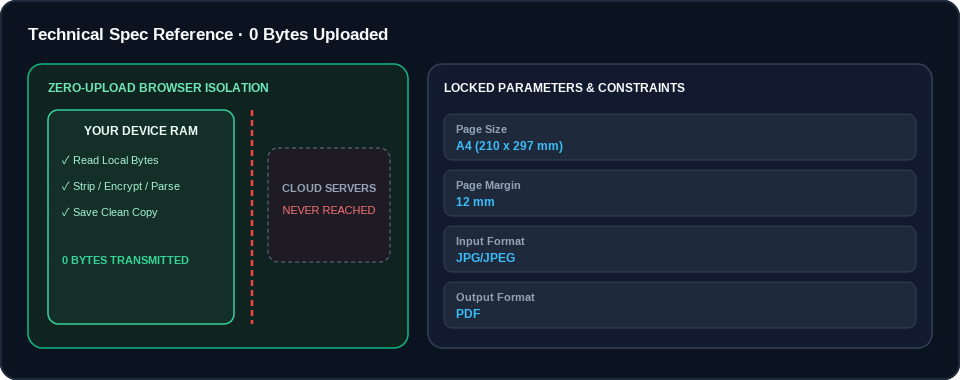
| Parameter | Recommended Setting | Why It Matters |
|---|---|---|
| Page Size | A4 (210 x 297 mm) | A4 is a standard international document size, suitable for most passport and visa application portals like USCIS or DS-160. |
| Page Margin | 12 mm | A 12mm margin prevents content from being cut off during printing or when viewed on various devices, ensuring legibility. |
| Input Format | JPG/JPEG | JPG is a widely accepted image format for passport photos, balancing quality and file size efficiently. |
| Output Format | PDF is the universal standard for official document submission, preserving layout and quality across platforms. | |
| Processing Location | Browser-Local | All image-to-PDF conversion occurs directly on your device, ensuring zero data upload and maximum privacy for sensitive documents. |
Common Issues & Troubleshooting Fixes
Passport photos appear blurry or pixelated in the final PDF.
Ensure original JPGs are high resolution (e.g., 600 DPI) before uploading. This tool cannot enhance low-quality source images.
Specific application portal rejects the PDF due to incorrect dimensions.
While A4 is standard, verify your specific portal's requirements. If needed, use a separate tool to crop or resize individual JPGs before combining.
Images are cut off at the edges within the PDF document.
This tool uses a 12mm margin. If content is still cut, your original JPGs might have minimal internal padding. Crop them slightly to add space.
Large number of JPGs cause slow processing or browser lag.
For an extremely high volume of images (e.g., 50+), consider combining them in smaller batches to avoid browser memory constraints.
Why Run This Workflow Locally in ShowPro?
Unlike online PDF converters that require uploading sensitive passport photos to external servers, ShowPro processes everything locally in your browser. This means your personal identity documents never leave your device, offering unparalleled privacy and security specifically for 'combine passport jpg pages into pdf offline' workflows.
Frequently Asked Questions
Can I adjust the page size or margins from A4 and 12mm?
This specific tool is pre-configured for A4 with 12mm margins to streamline passport photo combining. For custom settings, please use our main JPG to PDF tool.
What if my passport photos are not JPGs, but HEIC or PNG?
This tool specifically accepts JPGs. For HEIC files from iPhones, convert them to JPG first using your phone's share menu or a tool like heic2any.js. PNGs should also be converted.
Is there a limit to how many JPGs I can combine into one PDF?
While there's no strict hard limit imposed by the tool, combining a very large number of high-resolution JPGs can impact browser performance and memory usage. Test with smaller batches if issues arise.
How do I ensure the quality of my passport photos is maintained?
The tool uses HTML5 Canvas to render images, which preserves original JPG quality. Ensure your input JPGs are already high-resolution and properly exposed for the best output.
Why does the PDF download automatically without an 'uploading' progress bar?
The entire conversion happens within your browser using client-side JavaScript (pdf-lib.js). Since no files are uploaded, there's no server-side progress to display, ensuring instant, private processing.